How to Set Up a TikTok Environment: What an Antidetect Browser Actually Does, and a Five-Step Walkthrough
Was the TikTok environment you built last year still working this year? For most operators, the honest answer is no. TikTok's risk control keeps tightening — setups that used to run smoothly now get zero views, throttled reach, and bans in rotation. We recently rebuilt an entire environment from scratch to show exactly where TikTok's risk control bites, what role the antidetect browser plays, how to pick a dedicated IP, and how to verify the whole thing before you go live.
What TikTok's Risk Control Actually Watches
Before running TikTok accounts, you need to understand the three levers the platform pulls when it flags an "abnormal environment":
- Device fingerprint: device model, OS version, Canvas/WebGL rendering signatures, timezone and language — together these parameters add up to one "virtual device." Run multiple accounts on the same set of parameters, and you're telling the platform every account belongs to the same person.
- Network exit: the IP's ASN type (datacenter vs. residential), native vs. broadcast, dedicated vs. shared, and its cleanliness score. TikTok is more sensitive at the network layer than almost any other platform.
- Behavioral consistency: if your parameters say you're a user in New York but your behavior doesn't match at all, that contradiction triggers risk control faster than any single anomaly.
Once you see these three, it's clear that setting up a TikTok environment isn't "install a VPN and go" — it's manufacturing a coherent, human-looking device identity. This device + network + behavior framework isn't TikTok-specific: we applied the same logic in our breakdown of Facebook account management; TikTok is simply stricter about the network layer.
Three Ways an Antidetect Browser Helps Your TikTok Setup
Mapped against those three levers, the value of an antidetect browser becomes obvious.
First, environment isolation — no cross-contamination. Every profile you create inside the browser is fully separated from your real machine: cookies, caches, and fingerprint parameters all live in independent containers. This is the precondition for everything else — without isolation, your local identity leaks straight through the browser.
Second, one-click proxy setup and testing. When creating a profile, pick the Chrome kernel, set the proxy type to SOCKS5, paste in the residential IP credentials, and the browser auto-detects and fills the fields. Hit "check network," and a green result means you're connected. No manual system proxy edits, no misconfigured settings.
Third, environments are replicable. TikTok environment parameters are interlocking: if the IP is in New York, the timezone has to be New York and the language has to match. The browser stores all of this inside the profile — configure it once, then clone every new environment to the same standard so manual setup never causes parameter drift. Once you're scaling to dozens of profiles, this "standardized cloning" approach becomes the workhorse — we covered the full scaling playbook in our piece on multi-account operations.
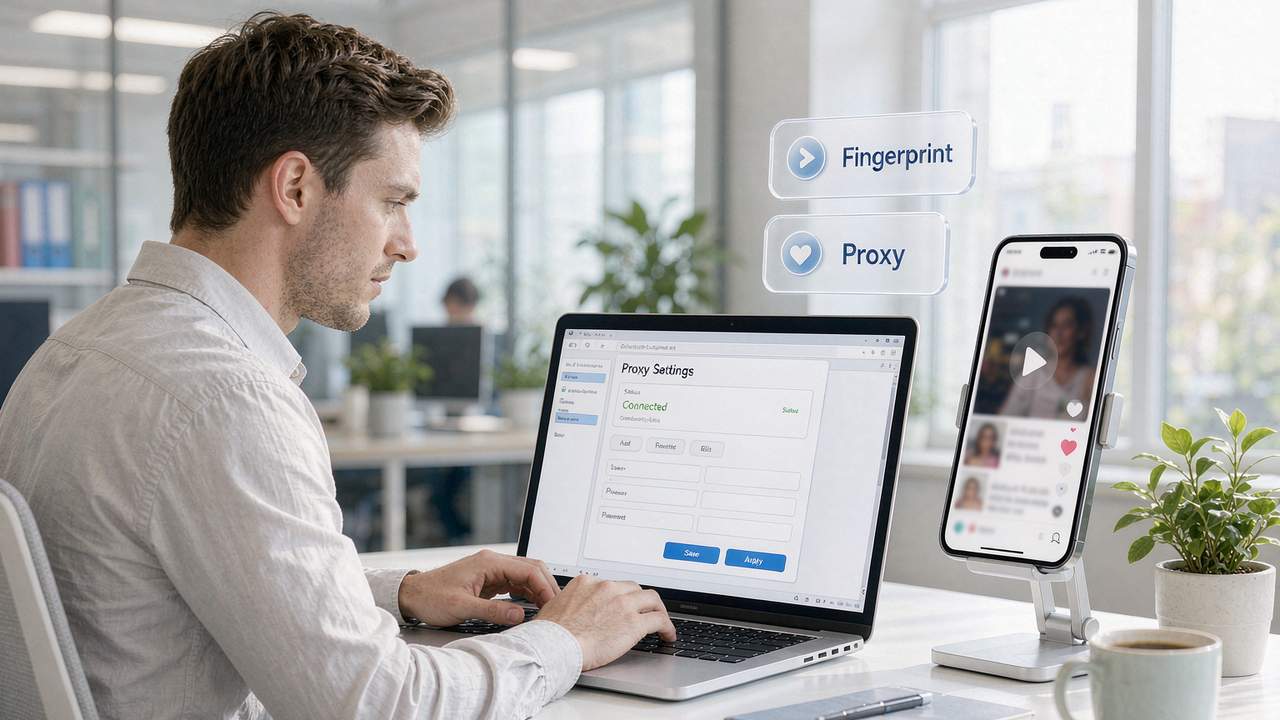
In one sentence: an antidetect browser doesn't "prevent bans" directly. It turns your environment from one shared blob into independent units, which is what gives IP selection and behavioral operations room to work.
Choosing a Dedicated IP: Three Hard Metrics
Once isolation is done, the quality of your network exit sets your ceiling. For TikTok, judge an IP on three hard metrics:
| Metric | Why it matters | How to verify |
|---|---|---|
| Dual ISP + native residential | The ASN reads as a local home broadband line — the profile platforms trust most | Check the IP type on ping0.cc or a similar detector |
| Exclusive | A shared IP's history is out of your control; other people's violations carry over | The "shared users" figure in the report should show exclusive |
| Static and stable | TikTok accounts need a long-term consistent login trail; frequent IP changes read as abnormal | Monitor whether the registered location drifts over time |

In our tests, a passing environment looks like this on the detector: dual ISP, native residential attributes, a "very clean" purity rating, and shared-user count showing exclusive. Dedicated lines are no longer expensive — a static US residential IP runs about $3.80 a month — so price is no longer the barrier; quality verification is. Test a sample before buying, re-test after. That's enough for a single-account setup; if you're planning a matrix of accounts working together, IP division and network layering are a separate topic — see the big-picture approach in our social media matrix marketing article.
Building a TikTok Environment from Scratch: Five Steps
The process itself isn't complicated — what matters is that every step has an acceptance check:
- Create an isolated profile: in the antidetect browser, create a new profile on the Chrome kernel (download it if prompted), and name it consistently, e.g., TK-US-Live01.
- Paste the proxy details: set the proxy type to SOCKS5 and paste in the static residential IP credentials — the browser auto-detects and fills them in.
- Test the proxy: click "check network"; green means connected. If it fails, swap the IP — don't force it.
- Verify IP quality: open ping0.cc or a similar detector and confirm all five items: location, dual ISP, native residential, purity, and exclusive status.
- Align parameters, then create the account: match timezone and language to the IP's location before registering or logging in — then start operating.
After the five steps, every new TikTok account is just a copy of the same standard: new profile, new IP, same checks. Accounts are fully isolated from each other, so one failure never takes down the rest.
Frequently Asked Questions
Q: Does TikTok Live demand anything extra from the environment? Live streaming stresses bandwidth and stability far more than watching videos does. When picking a dedicated line, prioritize bandwidth (100Mbps or higher is safer) and latency — a setup fine for scrolling may not hold up under a live stream.
Q: Rotating IPs are cheaper — can I use them for TikTok? Fine for browsing content and checking materials. Not for account farming or operations — a rotating exit produces a drifting login trail, which directly contradicts the "long-term, stable local user" persona.
Q: My environment is set up correctly — why am I still getting zero views? The environment is just the entry ticket. Zero views usually traces back to content quality, posting time, and account weight. Get the environment right first, then audit content and cadence.
Where This Leaves You
Setting up a TikTok environment is three layers if you make it complex — device, network, behavior — or one sentence if you don't: make every check the platform runs point to a real local user. The antidetect browser covers the device and parameter layer, an exclusive native residential IP covers the network layer, and the behavior layer is yours to run at a human rhythm.
This piece is the complete TikTok setup chain; links to the three companion articles are placed where they belong in the body above, so grab whichever applies.
Tools are just a way of hard-coding the process. If you're ready to start, download MakoBrowser, spin up a test environment, and run the five steps end to end; more hands-on guides are published regularly on the MakoBrowser blog.