SOCKS5 vs HTTP Proxy: What the Difference Is, and How to Configure Them in a Fingerprint Browser
When people pick a proxy, most look only at region, bandwidth, and price — the type field, HTTP or SOCKS5, gets skipped. Yet that one field decides three things: which side sends the DNS request, whether UDP traffic can get through, and whether the proxy rewrites your request headers. On ordinary browsing none of this is noticeable, but once the proxy is wired into a fingerprint browser environment such as MakoBrowser, it feeds straight into environment quality. Below we cover where the two differ, how to choose between them, and the full process for configuring and verifying.
The core difference: one understands web language, the other just carries data
An HTTP proxy works at the application layer, can read the HTTP requests passing through it, and can therefore rewrite them; SOCKS5 is a generic forwarding channel that doesn't care what is inside.
When you open an http page, an HTTP proxy sees the request URL and headers. For https, the browser first sends a CONNECT request to open a tunnel, and once that tunnel is up the content is invisible to the proxy — the MDN description of the CONNECT method lays this out clearly. In other words, an HTTP proxy also relies on a tunnel to handle HTTPS; its capabilities just stay tied to the HTTP protocol.
SOCKS5 sits differently. RFC 1928 describes it as a "shim between the application layer and the transport layer" and defines three commands: CONNECT, BIND, and UDP ASSOCIATE. In plain terms, it doesn't parse the traffic — it delivers data to the destination as-is, and not only TCP.
In practice, the differences come down to a few points:
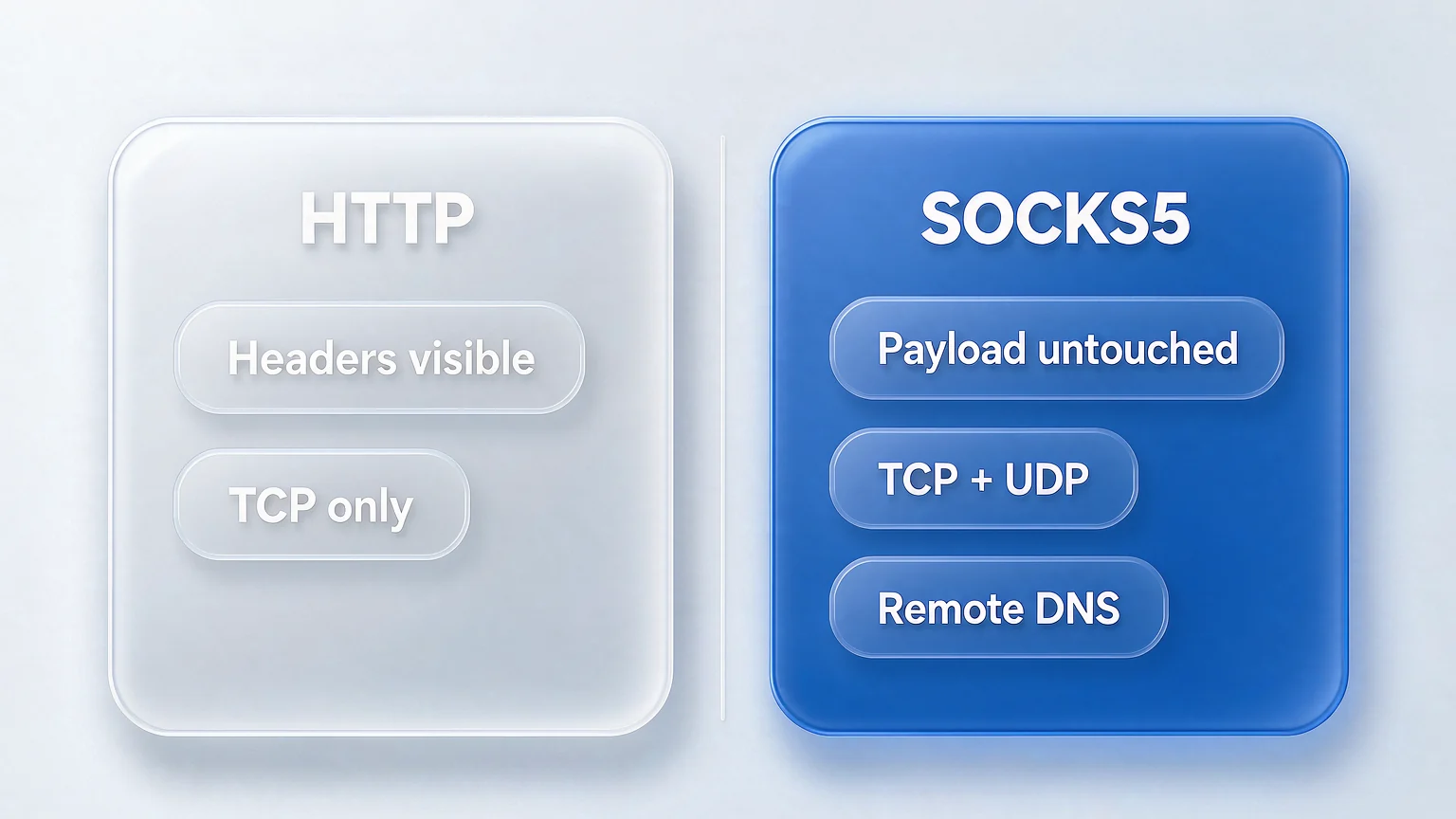
- What traffic can pass: an HTTP proxy handles HTTP and HTTPS; SOCKS5 can forward any TCP traffic and supports UDP natively.
- Whether it touches your requests: at the HTTP layer the proxy can see the request content, and some implementations add headers such as Via or X-Forwarded-For; SOCKS5 leaves application-layer content untouched.
- Authentication: HTTP proxies commonly use Basic auth, where credentials are merely base64-encoded and security depends on HTTPS; SOCKS5 has its own authentication negotiation, and RFC 1929 defines a username-plus-password method for it.
- Port conventions: SOCKS services traditionally listen on port 1080, but use whatever port your provider gives you.

Once it's in a fingerprint browser, DNS and UDP are what actually break
When the proxy type is wrong, the first symptom usually isn't "can't connect" — it's DNS requests quietly leaving through the local network.
Which side resolves DNS decides whether it leaks
Which side resolves a domain name depends on the client's settings, not on the name of the proxy type. SOCKS5 can hand the domain straight to the proxy — RFC 1928 defines an address type for domain names. But clients don't necessarily do this by default: in Firefox, for example, you have to tick "Proxy DNS when using SOCKS v5" before resolution goes through the proxy; with it unticked, the client resolves the domain to an IP locally first and only then hands it to the proxy, so the DNS request lands with your local ISP. That is the most common source of a proxy DNS leak.
An HTTP proxy generally hands the hostname to the proxy to resolve, but you still shouldn't assume: WebRTC connections, browser pre-resolution, and any traffic that bypasses the proxy can all send the lookup back to the local resolver.
Verifying it isn't hard. Once the environment is running, open any DNS leak test page and check which region the resolving server belongs to. If it shows your local ISP, resolution isn't following the proxy.
When UDP support actually matters
When a browser hits a site that supports HTTP/3, it will try QUIC, and QUIC runs on UDP. If the proxy only supports TCP, traffic falls back to TCP automatically, pages still open, and you won't notice day to day. SOCKS5 becomes necessary when the environment also runs tools that depend on UDP.
For web operations alone, UDP isn't a deciding factor; with extra tools in the environment, it is.
When to use SOCKS5, and when HTTP is enough
Choosing isn't about which type is "more advanced" — it's about your traffic mix and what type your provider offers.
Some judgments you can apply directly:
- The provider only offers HTTP, and you only need browser web traffic: use the HTTP proxy; it is entirely sufficient.
- The environment runs UDP-dependent tools alongside the browser, or you want to shrink your DNS exposure: prefer SOCKS5.
- You need caching, content filtering, or access auditing: an HTTP proxy fits better, because its value lies precisely in reading request content.
- You're just running multiple accounts for social media or store operations: either type works; the real gap isn't in the protocol.
Two widespread myths are worth pulling apart. The first is "SOCKS5 is always faster" — speed depends on the proxy server's bandwidth, load, and link distance, not on the protocol type. The second is "SOCKS5 is more anonymous" — it only refrains from altering traffic content; it doesn't hide who you are, and whether logs are kept is up to the provider.
One more reminder: proxy type is only one parameter in the choice. Whether the proxy is dedicated, whether the region is stable, and whether IPs change constantly often matter more for environment isolation than the protocol type does. Spending ages agonizing over the type while using a shared proxy that keeps hopping IPs puts the priorities in the wrong order.
Configuring a proxy in a fingerprint browser: from type to verified
The setup itself is only a few steps, but the wrong order means redoing the work: test it outside the environment first, configure it inside, and re-check in the browser last.
-
Confirm the proxy works first. Once you have the host, port, type, and credentials, test connectivity outside the environment, so you can tell "the proxy is down" apart from "the environment is misconfigured".
-
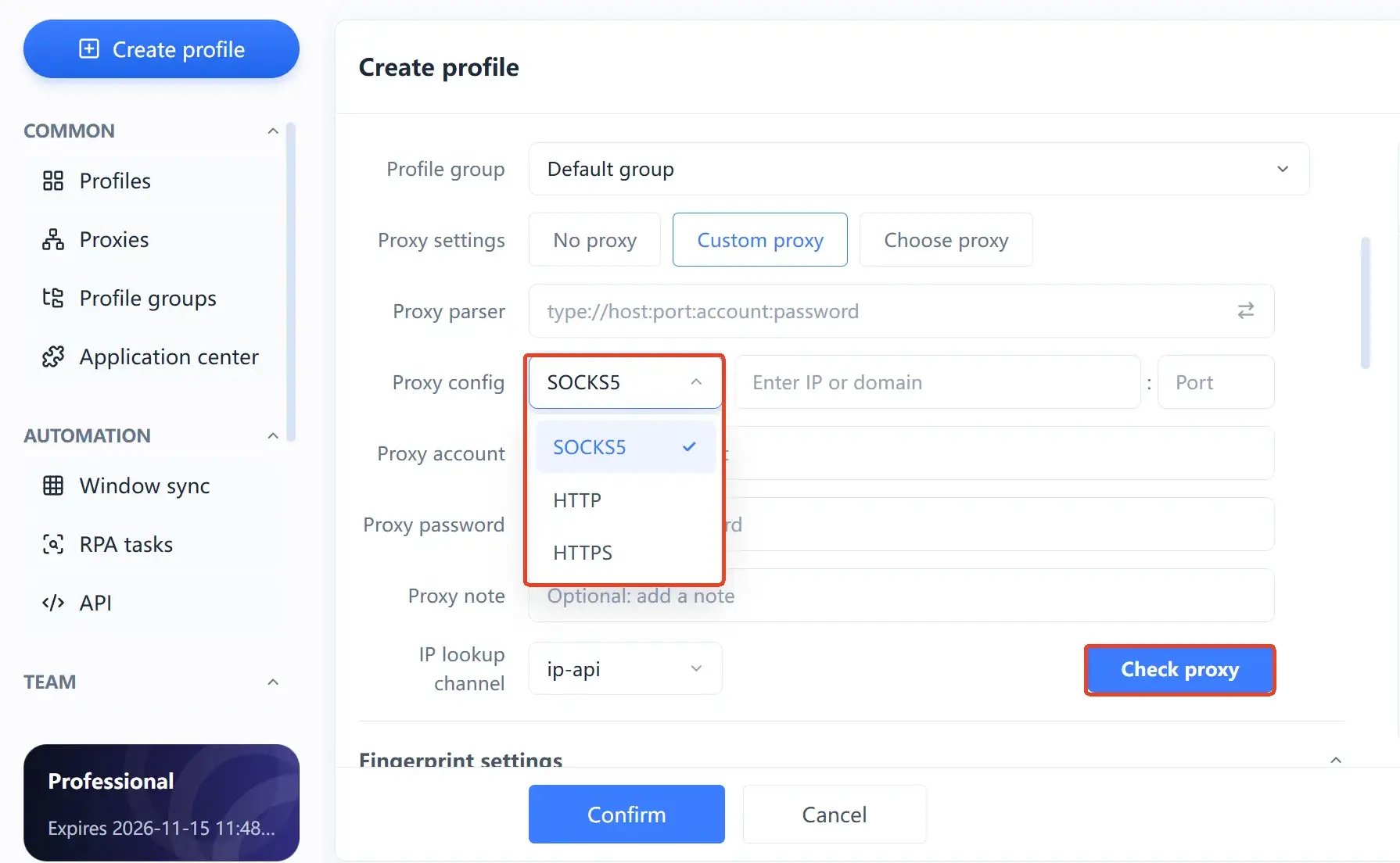
Open the environment's proxy settings and pick the type. The type must match what the provider gave you. Entering a SOCKS5 proxy as HTTP simply won't connect, and the error is usually vague enough to be mistaken for a broken environment.
-
Enter host, port, and credentials. Fill in the username and password if you have them, and be careful not to copy in stray spaces — that is the most common rookie mistake.
-
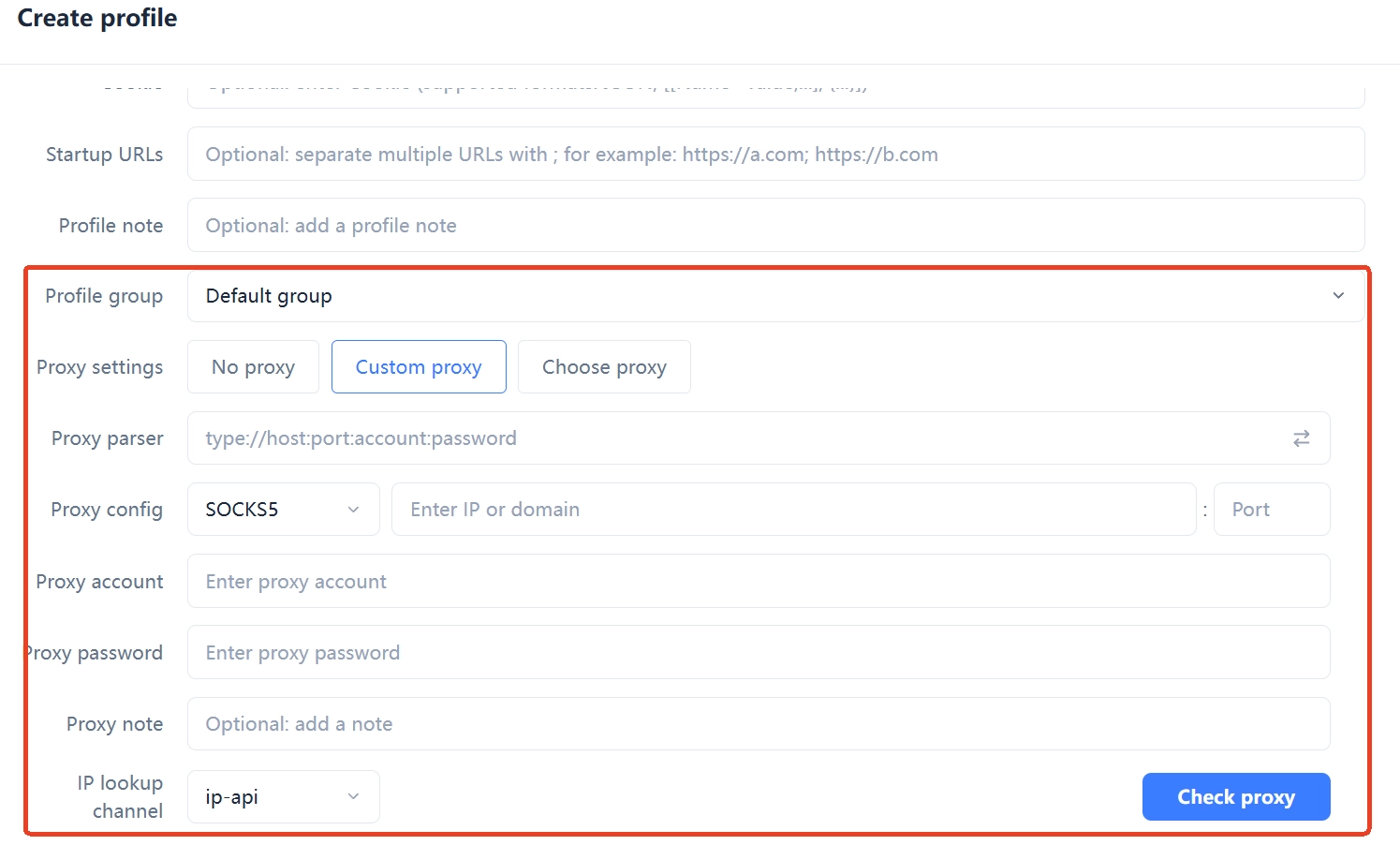
After saving, run the proxy check inside the environment, confirming that the exit IP, country, and region match expectations.
-
Once the environment is launched, check again inside the browser. Focus on three things: exit IP, DNS resolution location, and WebRTC.
-
Lock it in. One account, one fixed exit — don't swap nodes often just to "look safer", because frequent switching is itself an anomaly signal.
Steps 4 and 5 check two different things: the in-environment test confirms the proxy chain works, and the in-browser review confirms traffic isn't leaking out somewhere else. Do only the first and it is easy to miss DNS and WebRTC.
Three checks you must run after configuring
A configured proxy isn't a working proxy; exit IP, DNS resolution location, and WebRTC each need separate confirmation.
- Exit IP and region: open any IP lookup page and confirm it shows the proxy's IP and not your machine's, and that the region matches the provider's description.
- DNS resolution location: use a DNS leak test page to see where the resolving server is registered. This matters in SOCKS5 setups too, because the resolution side depends on client settings — don't assume.
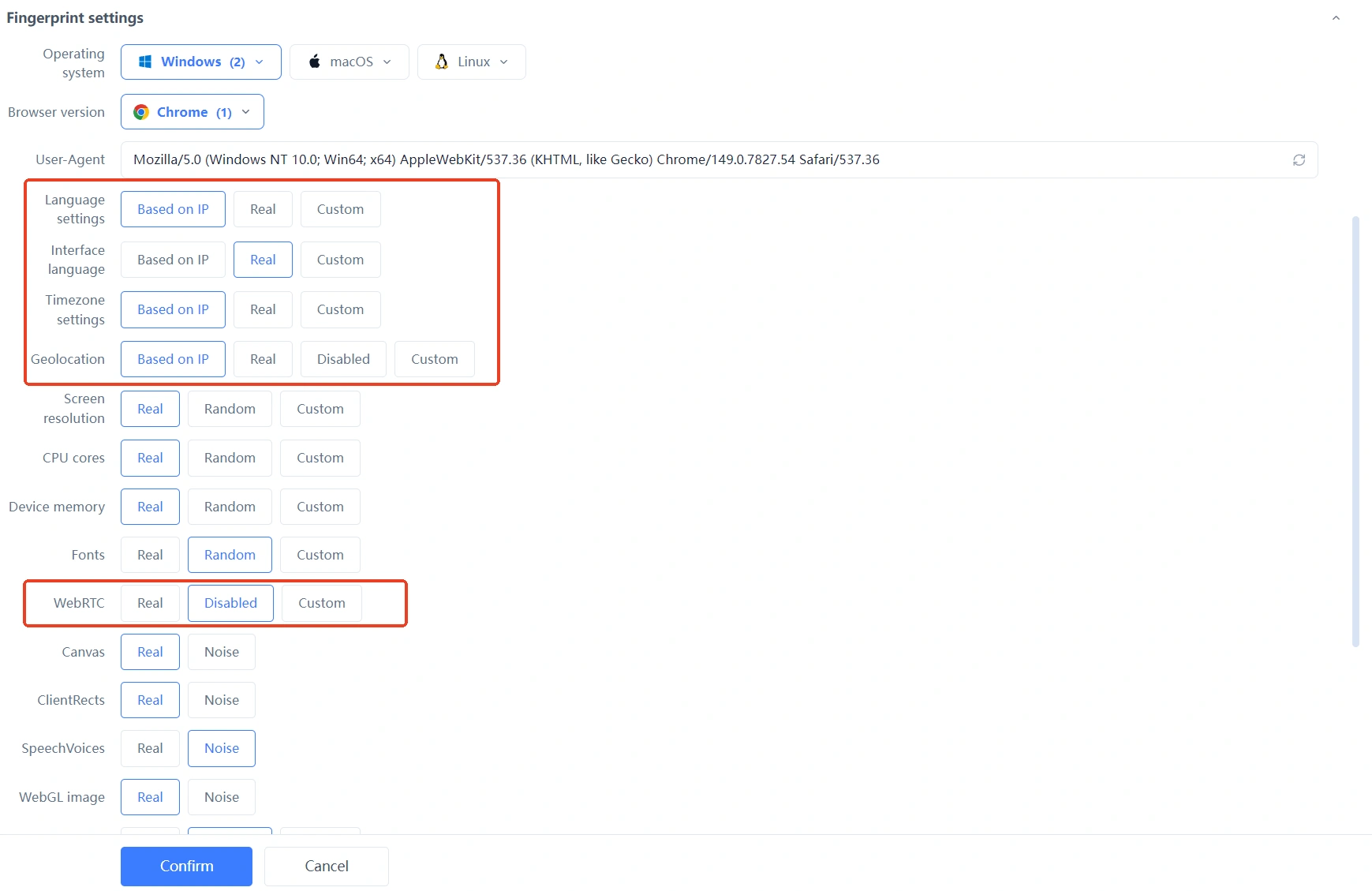
- WebRTC: check whether the browser exposes your real IP over WebRTC. This problem is very common in ordinary browsers where only the proxy changed and no environment isolation was done.
One more thing that's easy to overlook: the time zone, language, and system region should line up with the exit region. Running a US proxy while the time zone is still UTC+8 is a contradiction that gets noticed more easily than the wrong protocol type.
If you have a dozen or even several dozen environments to configure, turning the type, exit, and region into a reusable profile saves more effort than filling everything in by hand each time. That is also why MakoBrowser manages proxies alongside environments — environment, account, and network exit live in one place, so when someone else takes over they don't have to ask "which node is this account on?" To get one environment running first, install the client from the download page.
Frequently asked questions
Which is faster, SOCKS5 or HTTP?
There is no fixed answer. Speed depends on the proxy server's bandwidth, load, link distance, and the target site, with little relation to protocol type. Instead of agonizing over the type, look at the quality of the proxy's line first.
Does a fingerprint browser have to use SOCKS5?
No. If you only run web traffic and the provider only offers HTTP, an HTTP proxy works just as well. SOCKS5's advantages center on UDP support and controllable remote DNS resolution, so prioritize it when the environment runs UDP-dependent tools.
I entered the proxy, so why does it still show my real IP?
There are three common causes: the wrong type means the proxy isn't actually in effect, the browser connects directly over WebRTC, or DNS is still resolving locally. Work through them in the order from the previous section and you can usually pinpoint which link is at fault.
Can an HTTP proxy access HTTPS sites?
Yes. The browser first opens a tunnel through the proxy using the CONNECT method; traffic inside the tunnel is encrypted, so the proxy cannot see the page content. That is the standard way an HTTP proxy handles HTTPS.
Does proxy type affect account safety?
The type itself doesn't determine the account outcome; what matters is whether the exit is stable, whether the region matches the account, and whether it switches often. No tool can guarantee an account won't be challenged — keeping the environment clean and avoiding abnormal swings is the part you control.