MakoBrowser FAQ: Registration, Login, Proxy Configuration and Environment Recovery
People who have just started using MakoBrowser usually find that their problems have nothing to do with fingerprint parameters. Instead, three very basic things keep coming up: they cannot log in after registering, the proxy they configured refuses to connect, and the environment they built on another computer is nowhere to be found. What these three have in common is that none of them is difficult, yet the moment one of them blocks you, the account simply sits there doing nothing. Below, each type of problem is broken down in the order of "first work out which layer you are stuck at, then act".
Registration and login: first decide whether it is an account problem or an environment problem
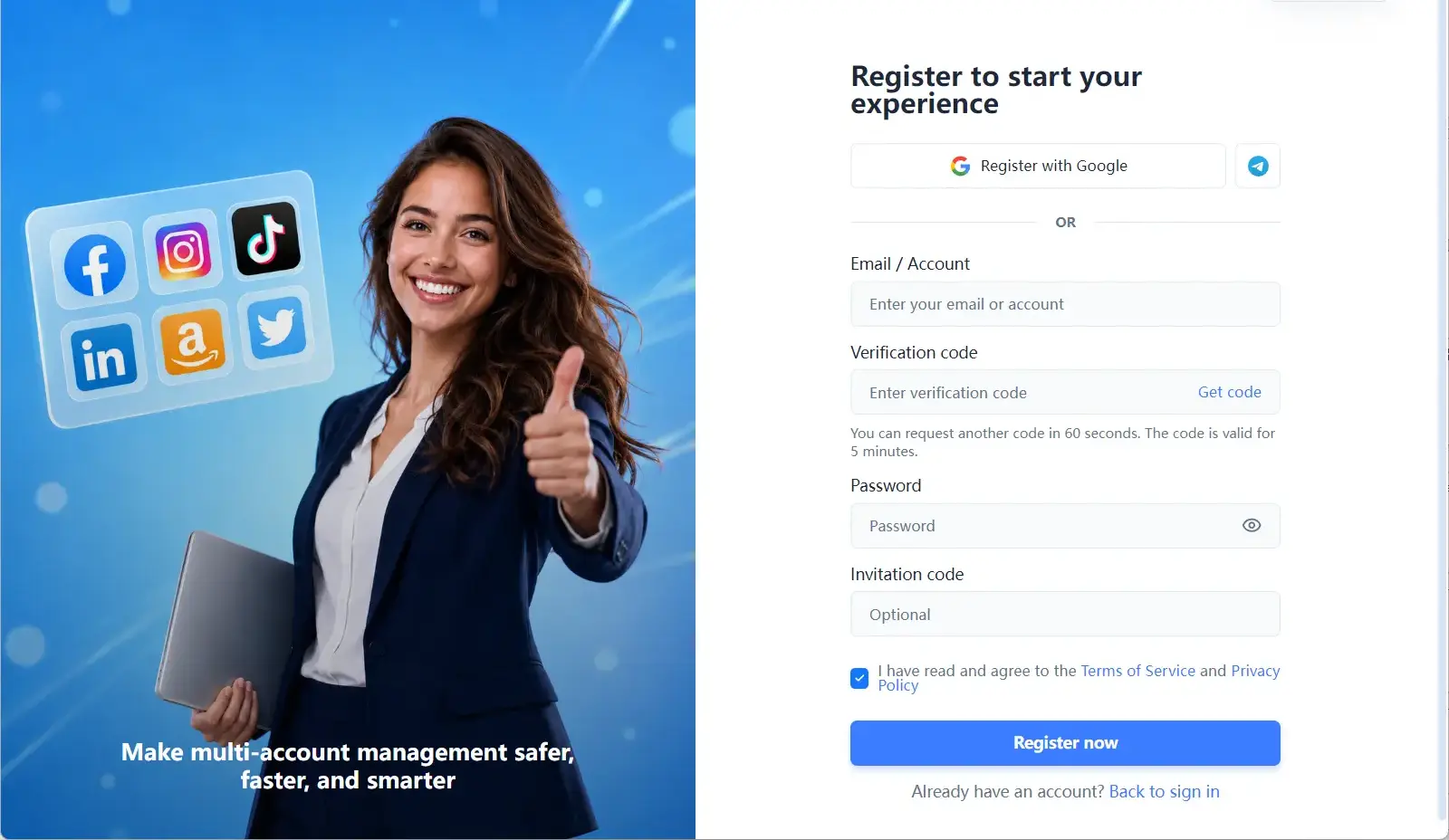
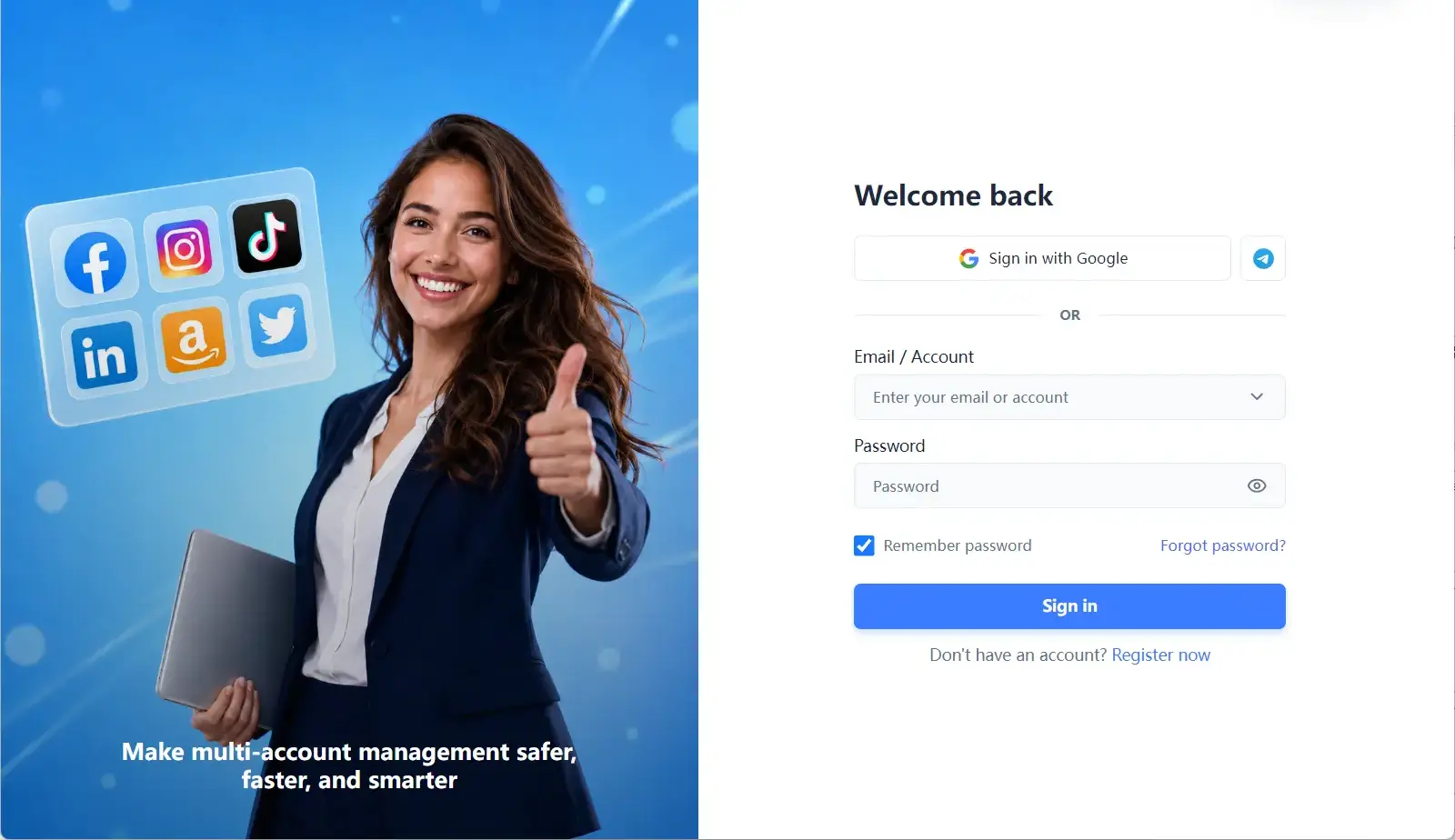
A failed login is almost never a wrong password; far more often it means you have not yet decided whether the problem lies with the account or with this particular machine. MakoBrowser is a fingerprint browser built for multi-account operations, and the client is only the entry point: the real account holder is the user you registered. So the first step is to sort the problem into a category.
- The same account cannot log in on another computer: first check whether that machine has a working internet connection, then whether the client version is too old. When the client and the server differ greatly in version, login requests can be blocked by an outdated protocol, so upgrade to the current version and try again.
- The password is right but you get an error: check that the input method is not set to the wrong language and that you have not pasted leading or trailing spaces. Special characters in a password are most easily confused between half-width and full-width when typed by hand.
- You forgot the password: use the official recovery flow instead of opening a new account to "start over". A new account will not bring back your original Profile; it will only detach the accounts that lived in your old environment from your new workspace.
- Several people in a team share one machine: do not share a single login. Workspaces support members and permission separation, and a shared login makes it impossible to tell who performed which action, or to trace anything when something goes wrong.
One point that is easy to overlook: the account you register and the platform accounts you manage are not the same thing. The workspace account is your identity inside MakoBrowser, used to manage Profiles; platform accounts (shops, social media profiles) are installed and used inside a Profile. Do not mix the two up in your head, and when you troubleshoot, one will not interfere with the other.
The proxy is configured but will not connect: troubleshoot in three layers, from local to parameters to the proxy itself
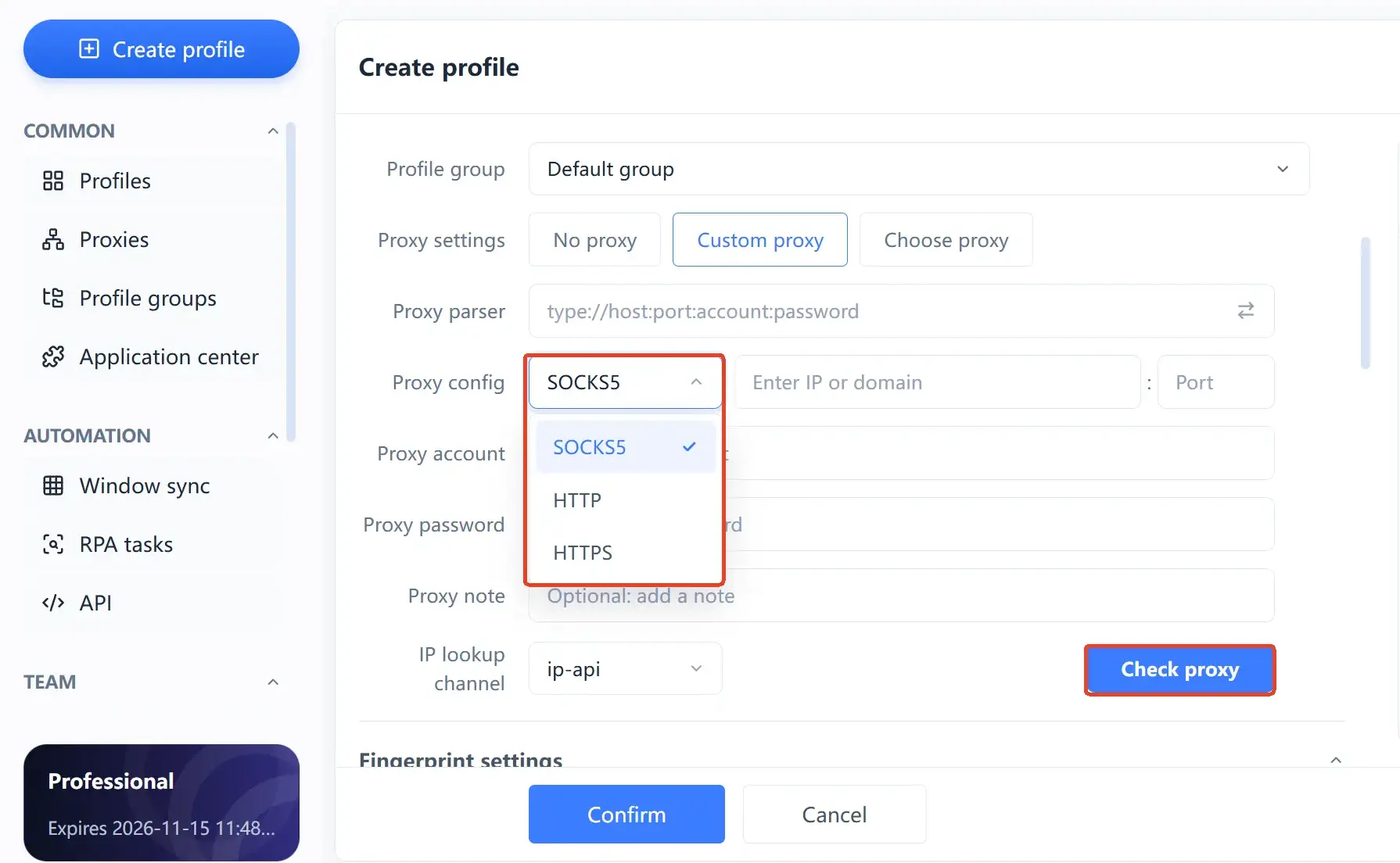
When a proxy will not connect, in eight cases out of ten the proxy is not broken; you are simply stuck at one of three layers: the link from your machine to the proxy, the parameter format, or the proxy itself having expired. Working through the layers is far more efficient than refilling the form again and again, and the order matters.
- First confirm that your machine can reach the proxy at all. If the route from your local network to an overseas proxy is already broken, no entry you make in the client will help. Start by verifying that this link is reachable using a method your system already provides.
- Then check the parameter format. Protocol, address, port, username and password: all four must line up. The most common mistakes are typing a full-width colon instead of a half-width one, or pasting in invisible spaces. After pasting, glance at the beginning and the end by hand.
- Finally, decide whether the proxy is still alive. A dynamic residential proxy usually has a lifetime of only a few minutes to a few dozen minutes, which is why "it worked yesterday and will not open today" happens; a static proxy, by contrast, depends on whether it is in arrears, expired or over quota. These two look identical but are handled in completely different ways.
If you are still unsure which protocol your proxy should use, the article on the difference between SOCKS5 and HTTP proxies already explains how to decide between them; here we only add one mistake beginners often make: sharing a single proxy across several Profiles to save effort. The network exit is a crucial part of environment isolation, and sharing a proxy strings the exit information of several accounts together, cancelling out most of the work you did to keep them independent.
What happens to your environments after switching computers or operating systems: sync mechanics and recovery paths
When environments "disappear" after a device change, the data is usually not lost; you simply never turned sync on. Of the three problems, this is the one most worth handling in advance, because it only shows itself once something has already gone wrong.
First, how MakoBrowser stores data: a Profile's environment data (Cookies, local storage, session state) is saved locally on the machine by default and counts as local data. So: reinstalling the client on the same computer normally does not affect the environment data already on that machine; on a different computer, that data simply is not there, and the environments will not appear by themselves.
To keep working across devices, the idea is to "sync the environment data out first, then pull it back on the new device":
- Turn on data sync in advance. This is the least effort, and the price is that environment data must be handed to cloud storage.
- Back up manually if you would rather not sync. Export and archive the data of your key environments at regular intervals, then import it again when you change devices. This suits teams that have concerns about data leaving their network.
- An important precondition for sync: close the browser before you start. Environment data is written to disk and synced when a Profile closes, so leaving it open while accessing it on another device easily syncs an intermediate state.
- In team scenarios, permissions matter too. Whether a member can see or operate a given Profile depends on how it is assigned in the workspace; "I can see it but my colleague cannot" is frequently a permission issue rather than lost data.
The shared misconception behind all three problems
These three kinds of problems look scattered, but they all rest on the same assumption: treating the local machine as if it were the account. Sorted into three points, they are worth stating clearly before you start using the tool.
- Assuming that installing the client puts the account in your hands: the client is a tool; the workspace account is the identity. A new device needs a new connection, and that is normal design, not a fault.
- Assuming that a filled-in proxy is settled once and for all: dynamic proxies expire, static proxies run out; the proxy is a component worth reviewing regularly. Noting down the expiry date saves far more time than starting the whole diagnostic from scratch when something breaks.
- Assuming that environment data follows the account automatically: by default it does not. Whether to sync, and which contents to sync (Cookies, bookmarks, passwords, local storage and so on), are choices you must make and authorise yourself.
One clarification: the tool is responsible for isolation and consistency at the environment level. Content compliance, operating rhythm and platform rules remain yours to uphold, and MakoBrowser does not promise that an account will never be actioned by a platform. That expectation should be in place before you start.
Four habits that prevent trouble from the very beginning
Of these three problems, the one that "doing it early" genuinely solves is environment recovery. The four habits below are ranked by return on effort, and the first two are worth doing by every user.
-
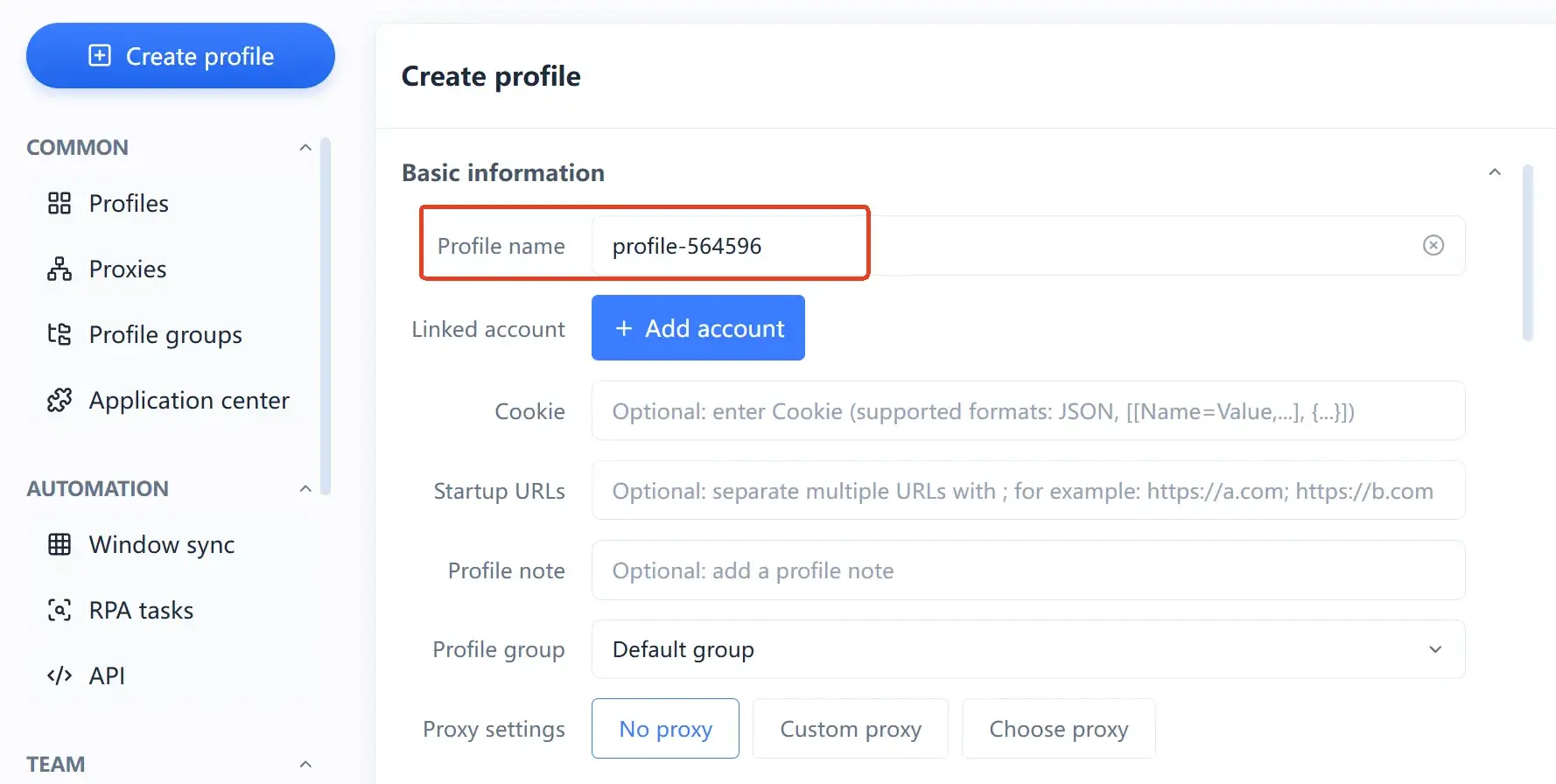
Give each environment a name anyone can read at a glance: naming by "platform + site + purpose" beats "Environment 1, Environment 2" by a wide margin. Once you have dozens of environments, naming becomes the only thing that lets you locate one quickly.
-
One device, one proxy; one environment, one account: this is the easiest rule to follow and the easiest to break. Do not put two accounts behind the same exit just to save a proxy.
-
Run a full sync before switching devices: do not wait until the new computer is on your desk to remember it. While you are at it, confirm that all environments are closed and all data written to disk.
-
Treat account handover as a formal process: when someone in the team leaves or changes role, go through a workspace permission change rather than passing the login password around verbally.
As for how Profile isolation actually works and why fingerprint parameters need to stay plausibly related, What is MakoBrowser and how an anti-detect browser works already break this down in detail, so it is not repeated here.
Frequently asked questions
What kind of tool is MakoBrowser?
MakoBrowser is a fingerprint browser (anti-detect browser) built for multi-account operations. It creates an independent browser Profile for each account, managing fingerprints, Cookies, local storage and the proxy network separately, reducing unnecessary correlation signals between accounts at the environment level. It is not a privacy browser and does not replace a proxy service.
I cannot log in after registering. What should I check first?
First decide whether this is an "account problem" or a "problem with this machine": try another network and another device. If login works there, the original machine is at fault (network, version or client state); if it does not, look at the account itself. Confirming that the client is on the current version rules out a large share of cases caused by protocol incompatibility in older builds.
The proxy reports a connection failure. How do I pin it down quickly?
Check the three layers in order: whether the link from your machine to the proxy is reachable, whether the parameter format is correct (watch for full-width colons and stray spaces), and whether the proxy itself has expired or is in arrears. An expired dynamic proxy and a mistyped parameter look very similar, but they are handled in completely different ways, so the order must not be reversed.
Why can I not find my old environments after switching computers?
A Profile's environment data is saved on the local machine by default and does not travel with you when you change devices. You need to enable data sync or export manually on the original device, then bring it back on the new one. Before doing so, close all related environments to avoid syncing an intermediate state.
Will reinstalling the client on the same computer lose my environment data?
Usually not; local environment data and the client program are stored separately. Even so, it is worth exporting a backup before reinstalling, especially when data sync is off, as it is the cheapest insurance available.
Can several people in a team share one login account?
It is not recommended. Workspaces support members and permission management, and a shared login makes actions impossible to attribute and later data anomalies hard to trace. The right approach is for each person to use their own member account and to assign Profile permissions as needed.
Get these three things straight and your environments will last
Registration, proxies and environment recovery are, at bottom, all about the same thing: whether the connection between you and the things you manage is stable. The account is your identity, the proxy is the environment's exit, and the environment data is what carries the account; break any one link and the account sits idle. What MakoBrowser provides is the tooling to organise these connections clearly; the remaining judgement is still up to you.