MakoBrowser Download and Install Guide: Official Installers and Your First Profile
To run multiple accounts with MakoBrowser, the first step isn't tuning fingerprints — it's getting the client installed on your machine. The official site offers two installers, one for Windows and one for macOS, and the download page lays the path from download to launch out in four steps. But beginners usually get stuck somewhere else: grabbing the wrong build, hesitating at a system prompt, or opening the app with no idea what to do first. This guide walks the whole flow against the real interface, marking every screenshot so you can follow along and check each step on your own screen.
Three things to confirm before you download
Before downloading, it's worth a minute to confirm three things: which system this machine runs, what version the download page currently lists, and how this machine will get online once installed. Get these straight and you'll rarely have to redo anything later.
- Your system decides the installer format: the official site currently offers only a Windows build and a macOS build, as .exe and .dmg files. There is no official installer for Linux or mobile, and hunting one down on a third-party download site isn't recommended.
- Just glance at the version number: the download page states the current version. Versions keep updating, so rather than memorizing a number, check the version and button text on the page before you install.
- Think about the network in advance: creating a Profile and configuring a proxy both need a connection. If you plan to give different Profiles proxies from different regions, it's best to have the proxy details (protocol, address, port, username, password) ready before installing so you can fill them in right away.
If you're still not sure whether you need a tool like this, it helps to first understand what a fingerprint browser actually solves before deciding to install one.
Getting the installer from the official site: two entry points, one source check
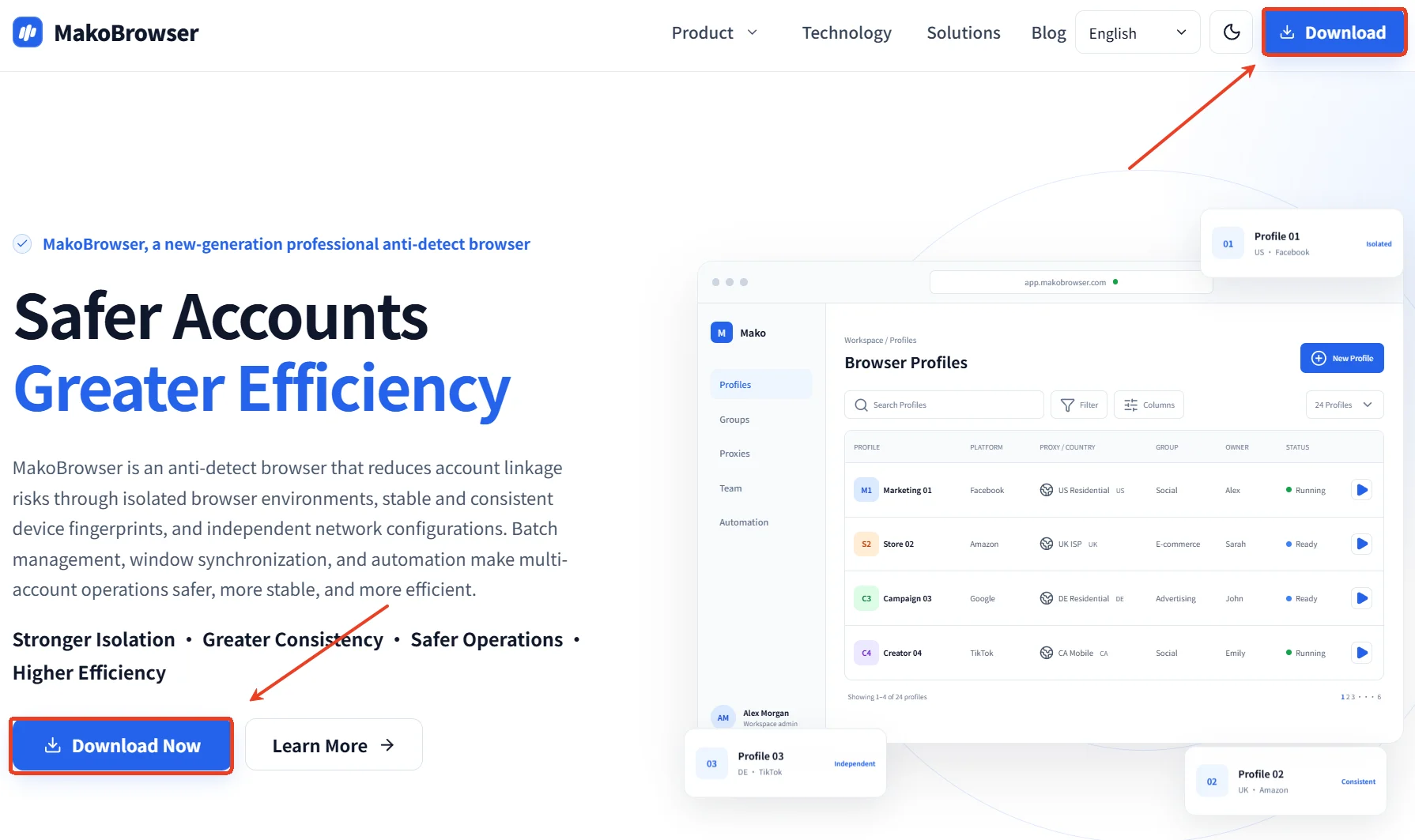
Downloading the installer only from the official site is the easiest security habit. The homepage has two entry points — "Download" at the right of the top navigation and "Download now" below the hero headline — and both lead to the same download page.
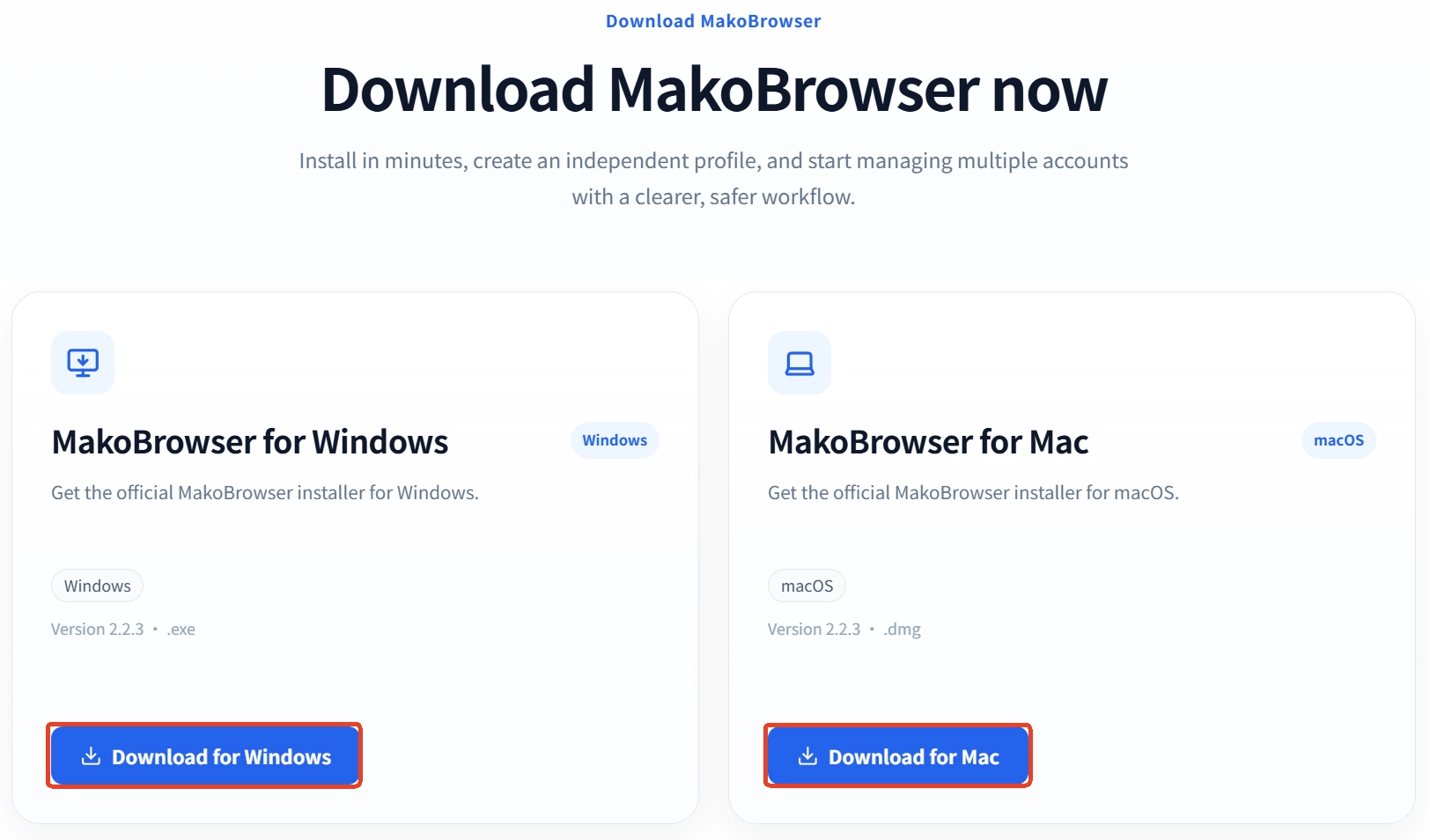
On the download page you'll see two cards:
- MakoBrowser for Windows, marked with a Windows label, the version number and an .exe suffix; the button reads "Download Windows version".
- MakoBrowser for Mac, with the same layout, labeled macOS, a .dmg suffix and a "Download Mac version" button.
Clicking starts the download directly. Once it finishes, check two things: whether the version number in the file name matches the page, and whether the file size looks normal (clearly too small means it didn't finish). Don't drop the installer in a temp folder either — keep it in a fixed location so a failed install doesn't mean downloading it all over again.

Windows: download, install, first run
On Windows the flow is three stages — download, install, launch — and if all goes well it's over in minutes. Double-click the .exe installer, choose an install location when prompted, and wait for the progress bar to finish. When it's done, a MakoBrowser shortcut appears on the desktop or in the Start menu.
What usually stops beginners is the system prompt that appears when the installer runs. If you see a blue window like "Windows protected your PC", it isn't a virus warning but Windows' generic block on apps that haven't purchased a code-signing certificate:
- Click "More info" in the dialog;
- an expanded view appears with a "Run anyway" button — click it to continue;
- if third-party security software is installed, it may block it once more — just choose to allow this run.
If the install fails midway, troubleshoot in this order: is the installer fully downloaded (downloading it again is often the fastest fix), is there enough free space on the target disk, and does the current account have install rights — right-clicking the installer and choosing "Run as administrator" usually clears up permission problems.
Mac: drag it into Applications, and allow it manually the first time
On macOS you mount the .dmg and drag the app into the Applications folder. Double-click the .dmg you downloaded and a window opens with the MakoBrowser icon and a shortcut to the Applications folder. Drag the icon across, wait for the copy to finish, then open it from Launchpad or Applications.
The first-run prompt on macOS is even easier to misread than the Windows one. If a message like "Apple cannot check it for malicious software" pops up, here's the fix:
- close the prompt window first;
- open System Settings → Privacy & Security and find the blocked entry in the security section;
- click "Open Anyway" and enter your login password to confirm;
- after that, double-clicking the icon launches it normally.
Allowing the app has nothing to do with MakoBrowser itself — macOS runs this check once for every newly downloaded app, and after you allow it once it won't prompt again.
First launch: from signing in to your first working Profile
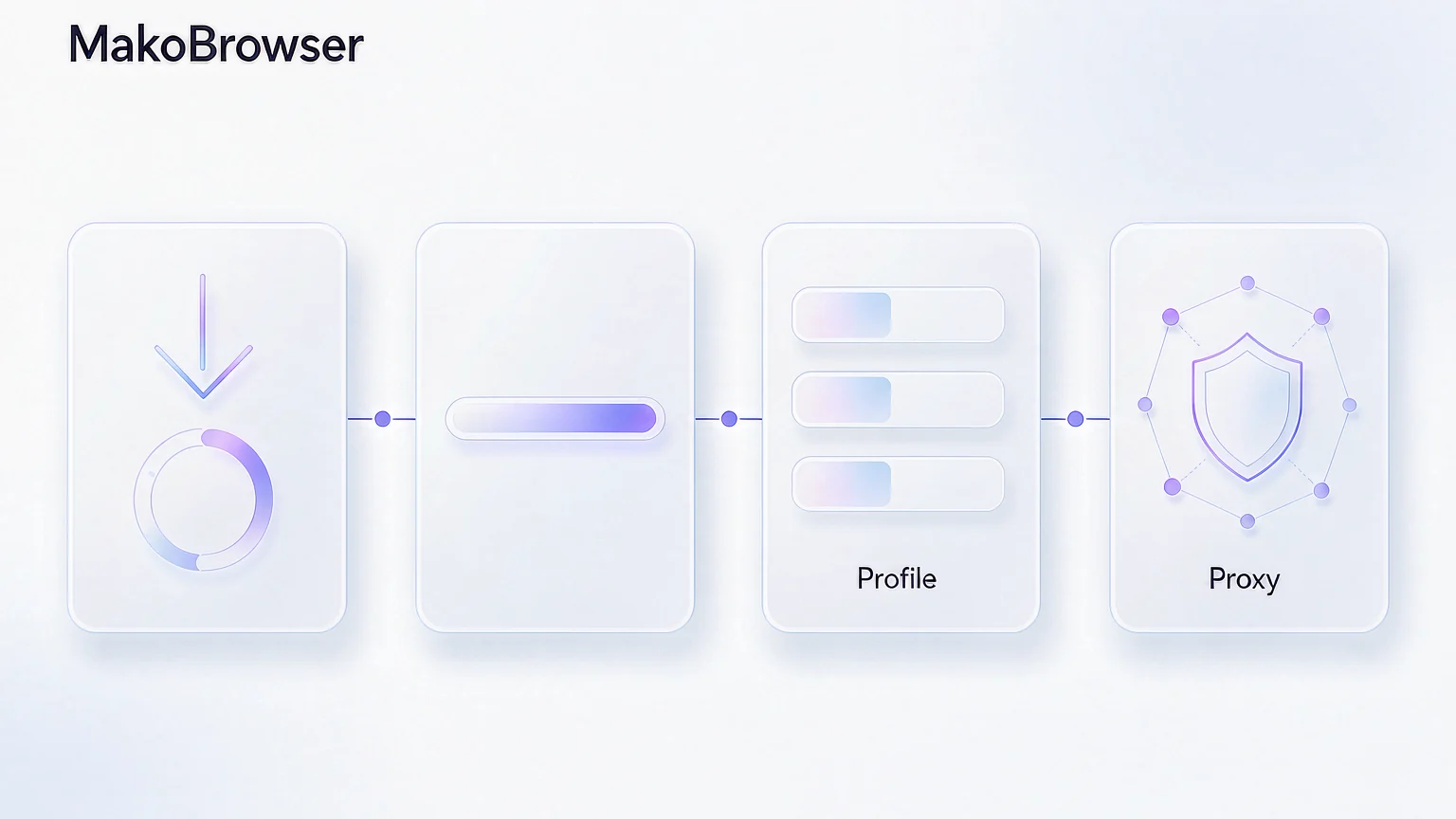
Installing only gets you the tool; whether you can actually use it depends on whether the first Profile is set up correctly. The download page splits this into four steps: create a Profile, configure the proxy, check the environment, launch the browser. Follow that order and you'll rarely go wrong.
-
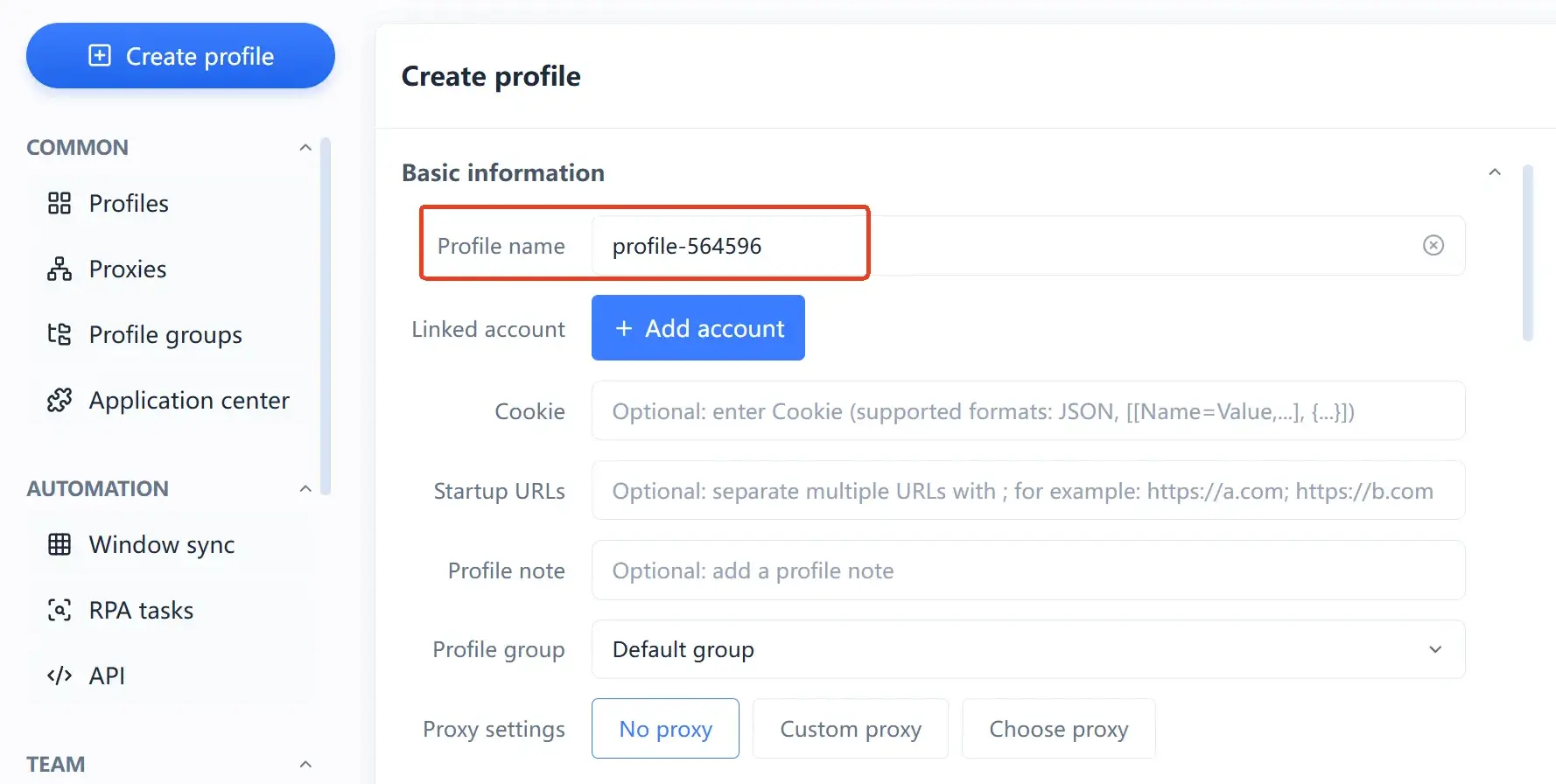
Create a Profile: create a new one in the environment list and name it by purpose, such as "Store A - US site" or "Account B - main". The name is up to you, but being able to tell at a glance which environment belongs to which account makes management much easier later.
-
Configure the proxy: fill in the matching proxy for this Profile. This is the most critical part of environment isolation — if two accounts share the same network exit, isolation loses most of its meaning. One proxy per Profile is the safest approach.
-
Check the environment: before launching, confirm the environment parameters match the proxy region; conflicting system language, time zone and geolocation are likelier to leave a trace than parameters that simply aren't unusual enough.
-
Launch the browser: open the Profile and sign in. From then on that account's cookies, local storage and login state stay inside this environment and won't be mixed up with other Profiles.
Why a Profile is the unit of isolation and how fingerprint parameters should stay in a sensible relationship with each other are covered in more detail in What is MakoBrowser, so we won't repeat it here.
The three traps you're most likely to hit after installing
A working client doesn't mean a usable environment — these three situations come up almost every time people start out.
- Signing in without configuring a proxy. Every Profile can have its own proxy, and skipping it means several accounts share your machine's network exit, which takes a big bite out of the value of separate environments.
- Signing multiple accounts into one Profile. A Profile's isolation is at the environment level; putting two accounts in the same environment is essentially the same as opening two tabs on one computer.
- Assuming that installing is all there is to it. The tool handles environment-level isolation and consistency; an account's own content, activity rhythm and platform rules are still up to you to keep. No tool promises that an account will never be actioned by a platform, and that expectation should be set before you start.
Frequently asked questions
Which systems does MakoBrowser support?
Officially there are two installers, a Windows build (.exe) and a macOS build (.dmg), and the download page is the only official entry point. For the exact compatible range of processors, memory and storage, refer to the release notes for the current version.
The installer is flagged as "unsafe" or blocked by the system — does that mean something is wrong with it?
Usually it's a generic security reminder from the operating system about an unsigned app, not a virus alert. On Windows, click "More info" and then "Run anyway"; on macOS, go to System Settings → Privacy & Security and click "Open Anyway" to continue. The premise is that you really did download the installer from the official site.
Do I have to configure a proxy before I can use it?
You can open the client and create and manage Profiles without a proxy, but to get the benefit of separate environments it's best to give each Profile its own proxy. The download page also states clearly that Profiles and the proxy feature require an internet connection.
If I upgrade to a new version, is my existing Profile data still there?
Before upgrading, read the release notes for that version and do any necessary backup or migration as instructed. The exact data compatibility policy is governed by the version announcement — don't assume it works based on experience.
Which folder should I keep the installer in?
A normal folder in a fixed location is fine; don't leave it in a temp directory and don't run it from inside an archive. That way you can still find it when you reinstall or roll back a version.
Start your first Profile with MakoBrowser
The whole flow really comes down to three steps: download the installer for your system from the official site, install it as prompted, then open the client, create your first Profile and set up its proxy. The real thinking isn't in the install but in working out "which account goes into which environment" — get that straight and bulk management, window sync and automation have room to work.