What Does Browser Environment Isolation Actually Isolate? A Complete Breakdown from Fingerprints to Verification
What Does Browser Environment Isolation Actually Isolate? A Complete Breakdown from Fingerprints to Verification
Most people's understanding of "environment isolation" stops at clearing cookies: wipe your browsing history before switching accounts, and you assume the two are unrelated. Yet accounts still get linked in batches — because cookies are only the most superficial of the many signals platforms use to identify you. Local storage, device fingerprints, timezone and language, network exit — clearing cookies never touches any of these.
Browser environment isolation isolates exactly these signals, at every source. This article breaks it all down: which layers make up a truly isolated environment, how to build one from scratch, and the step most often skipped — how to verify that the isolation actually works.
The Four Layers of Environment Isolation: Miss One and You Have a Gap
A properly isolated environment needs four layers to be independent at the same time:
Layer one: the device fingerprint. A browser "passively leaks" dozens of parameters to websites — OS version, screen resolution, font list, Canvas/WebGL/Audio rendering output, hardware concurrency. Even if two environments use different IPs, as long as this set of parameters matches, the platform can conclude it is the same device. The first step in environment isolation is to give each environment its own set of fingerprint parameters. One detail is worth noting: fingerprints are not better the more random they are — the parameters must be coherent with each other. A Windows system paired with Mac-only fonts is itself a suspicious combination. Mature tools therefore generate fingerprints based on "plausible combinations of common systems and devices," not pure random assembly.
Layer two: timezone and language. This layer's logic is the most commonly misunderstood: timezone and language should not be picked manually but should follow the IP automatically — whichever country the proxy exit is in, the environment automatically uses that country's timezone and language. A US IP paired with UTC+8 time and a Chinese interface tells the platform at a glance that the environment is being manipulated.
Layer three: the network exit. Each environment binds its own proxy; this layer determines "where you connect from." The mainstream protocols are HTTP and SOCKS5 — the latter covers traffic like WebRTC that can leak your real IP. Disabling or routing WebRTC when building an environment is standard practice; otherwise, no matter how well the first two layers are done, a single real-IP leak gives everything away.
Layer four: local data. Cookies, login sessions, LocalStorage, IndexedDB — these are the traces of an account's activity. In an isolated environment, local storage is physically partitioned: environment A cannot see or touch any data in environment B, and after closing and reopening, each keeps its own login sessions intact.
Put these four layers together and you get the complete story of "two entirely different people using two different computers." Many solutions on the market only implement one or two of these layers — and the gap is the entry point for linking.

Building an Isolated Environment from Scratch: Five Steps
Turning the principles above into practice, the workflow for building an environment is actually quite standard. Taking the common steps of mainstream fingerprint browsers as an example:
- Create the environment and pick the system profile: name the environment (by business or platform, for easier management later) and choose the operating system profile — Windows, Mac, or Android — which sets the base framework of the fingerprint;
- Generate the fingerprint: generate a full set of fingerprint parameters in one click. Canvas, WebGL, and Audio rendering layers can stay at their defaults — the defaults are designed around plausible combinations, and unless you have a clear reason, manual tinkering is not recommended;
- Configure the proxy: enter the proxy address and choose the protocol (HTTP/SOCKS5). The tool tests connectivity first and only lets you save if it passes — check the exit country shown in the test result and confirm it matches the account's profile;
- Timezone and language follow automatically: enable "timezone from IP" and "language from IP" so these two always stay aligned with the exit; do not set them manually;
- Import cookies as needed: when migrating old accounts, import the existing login state so the environment starts with its history; new accounts start from a clean state.
The whole process usually takes no more than two minutes. What actually costs time is not building environments but the two things that follow: grouping dozens or hundreds of environments by business, and managing your proxy pool in one place — both become routine once you scale. If multiple team members operate environments at the same time, you also need a layer of permission management; the earlier article on team collaboration management covers role configuration in detail.
Isolation Worked or It Didn't — Verification Decides
Finishing an environment does not mean the isolation is in effect. Verification is the step most often skipped in the whole process, and the one you should skip the least. The method is simple:
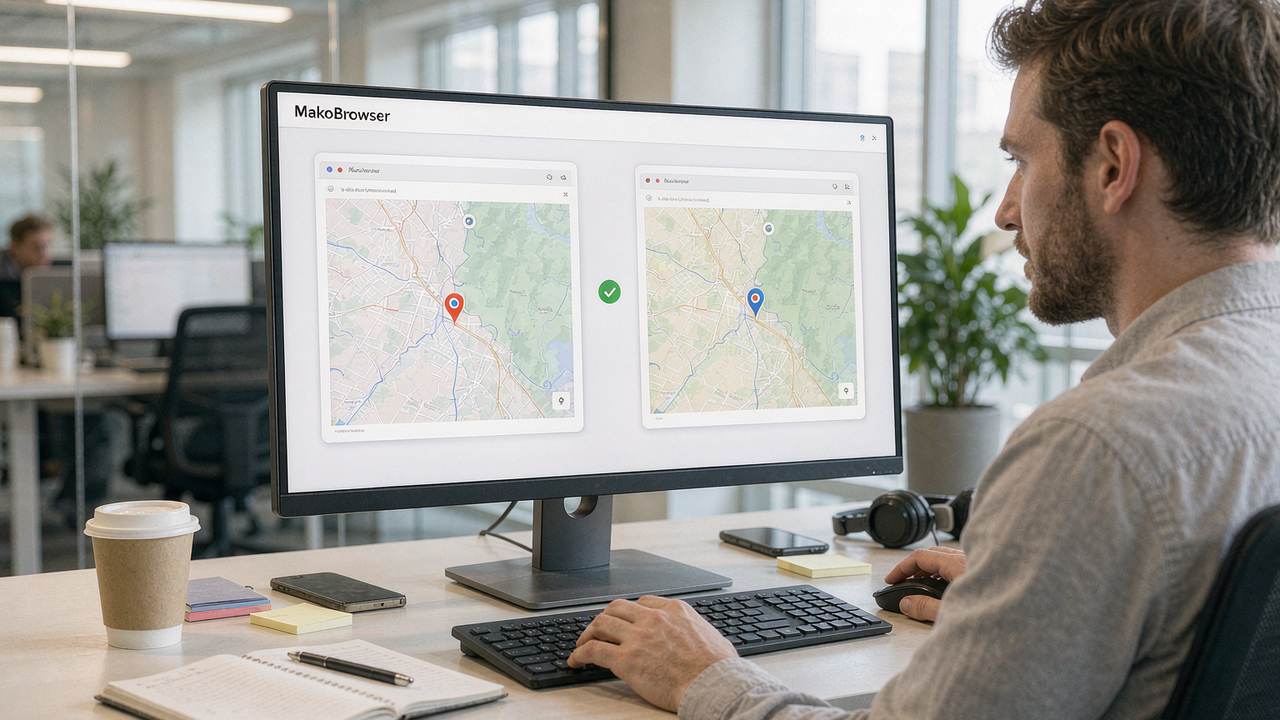
Open two environments and have each visit the same IP detection page, then check four things: whether the two environments show different IPs; whether each timezone matches its IP location; whether the language and region match; and whether the page's overall assessment is clean. If any one of these is off, some layer failed to isolate — go back and troubleshoot.
The value of this step is turning "I think it's isolated" into "I've confirmed it's isolated." Verify once before a new environment goes live, spot-check before batch operations, and always verify after changing a proxy — the habit of these three verifications blocks the vast majority of rookie accidents. At this layer, MakoBrowser builds these checks into the environment startup flow: every Profile automatically aligns timezone and language at launch, and the proxy connectivity test is built in before saving — verification turns from "something you have to remember to do" into "something you never have to think about."
Passing the isolation verification only earns you entry. Running accounts still involves daily operations — hand repetitive bulk actions to synchronizers and automation scripts, and let people step back from mechanical work. But remember: automation only works if the environment itself holds up. However smooth the workflow, a gap in the environment makes it all useless. For how environment isolation relates to proxy selection, the earlier article on static and rotating proxies covers it by business scenario — refer to it when configuring proxies for environments.
Frequently Asked Questions
Does a regular browser's incognito mode count as environment isolation? No. Incognito mode merely avoids leaving local records; device fingerprint, real IP, timezone, and language are all exposed as usual, and incognito windows share these signals with each other. It solves "don't leave traces on my computer," not "keep the platform from recognizing the same device."
Do fingerprints need to be changed periodically after an environment is set up? No frequent changes needed. A fingerprint's value lies in stability — an account uses one plausible parameter set long-term, just as a person doesn't change their face every day. Only when platform fingerprint rules upgrade, or an environment shows anomalous signals after long use, should you fine-tune parameters rather than rebuild from scratch.
Can one computer handle multiple isolated environments performance-wise? Modern fingerprint browsers allocate resources on demand; idle environments consume almost nothing, and running fewer than ten active environments simultaneously poses no problem on an ordinary office computer. With a large number of environments or a need for more concurrent activity, set infrequently used environments to launch on demand.
What if verification reveals an IP leak? Check WebRTC first — it is the most common leak source; confirm WebRTC is disabled or in proxy mode inside the environment. Then check whether the proxy itself supports the protocol, and whether any system-level proxy settings remain in the environment configuration. Troubleshoot layer by layer and retest until it's clean.
In the end, browser environment isolation is a discipline of "completeness": fingerprint, timezone and language, proxy, local data — only when all four layers are independent can it be called isolation. Miss one, and the platform has a way to string your accounts together. And verification is the only way to turn "it looks isolated" into "it's confirmed isolated."
If your accounts still rely on clearing cookies for a new identity, switch to a proper isolated environment starting today. Build two environments, bind two proxies, and run one dual-window verification — in ten minutes you can confirm with your own hands what isolation really is. Download MakoBrowser and put every account in a genuinely separate room.