How to Migrate a Fingerprint Browser Profile to a New Computer: The Complete Five-Step Process
Getting a new computer should be good news, but if you run multiple accounts, the joy rarely lasts: the environment moves over, yet the logins are gone; the proxy is filled in, yet the fingerprint parameters don't match; worst of all, the aged accounts you've nurtured for half a year all demand re-verification the day after the migration. A computer costs a few thousand to replace, but losing account assets is the real loss.
I recently watched a tutorial on browser profile migration, and it was still about regular-browser account sync. A regular browser can carry bookmarks and passwords over through cloud sync — so why can't a fingerprint browser be moved the same way? This article breaks down "how to migrate a fingerprint browser" properly: what to move, the five steps, and how to verify everything afterwards.
Regular Browsers Can Sync — Why Fingerprint Browsers Can't
Start with regular browsers. Chrome and Firefox both offer account sync: log into the same account, and bookmarks, passwords, and history travel across devices automatically. That's exactly what the migration video demonstrated — sign in on the new computer, hit sync, done.
Copying that approach to a fingerprint browser doesn't work, because the assets it manages are different in nature:
- Login states cannot go to the cloud. The cookies and login states in a multi-account environment are the account assets themselves. Putting them into cloud sync is like putting the keys to every account in one shared pocket — if the cloud fails, everything goes down at once. That's also why cookies are the lifeline of an environment — what they actually store and why they matter is covered in detail in our cookie management article.
- Fingerprint parameters must be locally self-consistent. The Canvas, WebGL, fonts, and timezone of each environment form an interlocking set; syncing parameters through the cloud easily loses details, and they no longer match the original after landing.
- Proxy configuration travels with the environment. The sync feature will not carry your SOCKS5 host, port, username, and password to the new machine.
So there is only one right way to migrate a fingerprint browser: export the whole environment as a package and import it exactly as it was. This principle was baked into MakoBrowser at the product design stage — environment, fingerprint, and proxy are always one unit; there is no "move only half" option.
What Exactly Gets Moved: One Environment Equals Three Assets
Think through what an environment is made of, and you'll know what to move. Each environment is a combination of three things:
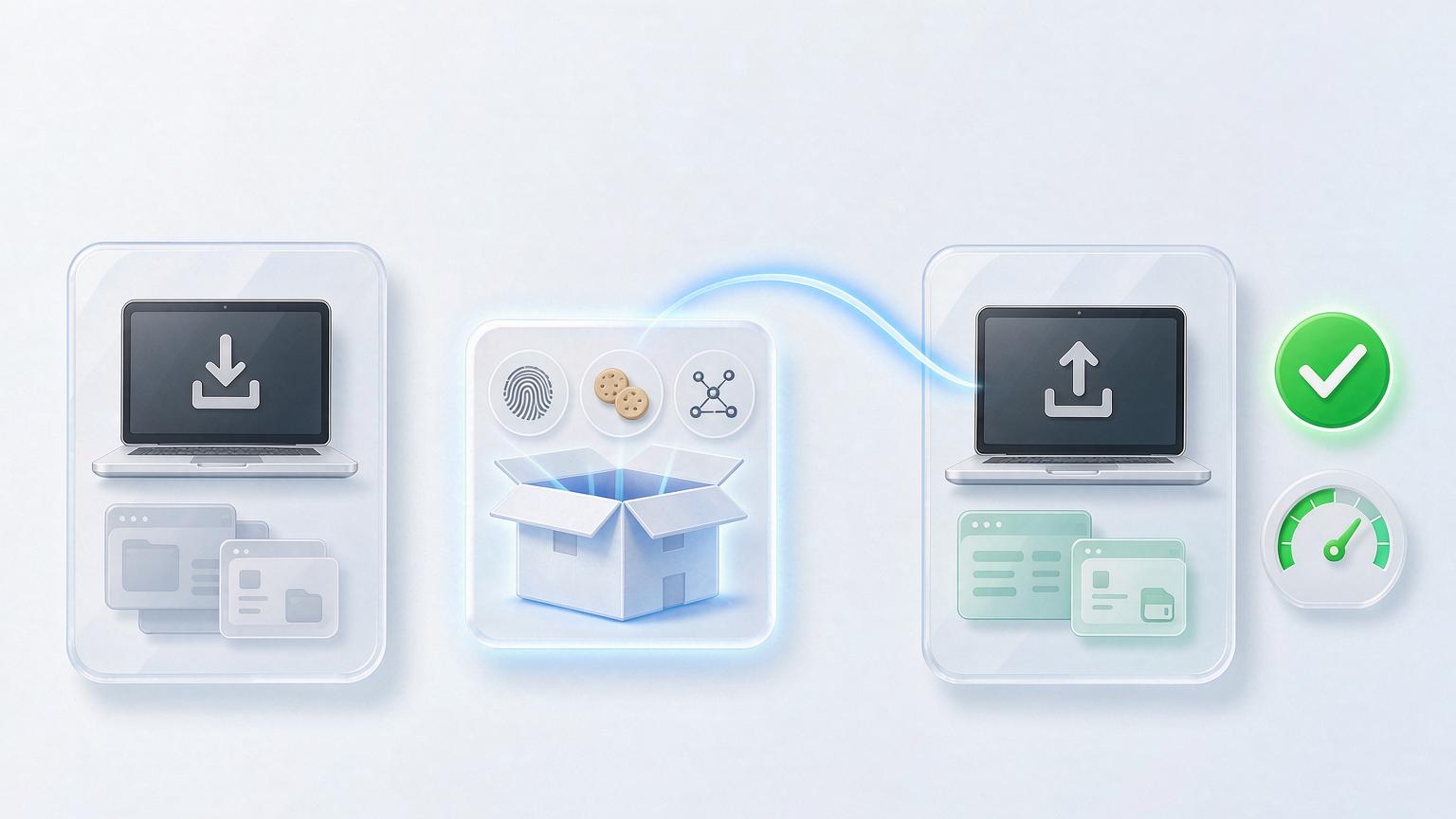
- Fingerprint configuration: these parameters decide who the "device" looks like to the platform. They must arrive unchanged — changing one parameter equals switching computers.
- Storage data: cookies, LocalStorage, cache — the login state and the account's history all live here.
- Proxy binding: IP geolocation, account persona, and timezone/language consistency all depend on it.
Miss any one of the three, and the migration stops being a "move" and becomes a "reset". Whether a fingerprint browser migrates well comes down to whether its export function bundles all three into one file — MakoBrowser's environment export was designed to this standard: single environments or whole groups can be packaged, and on import the fingerprint and proxy configurations are restored automatically, with no manual re-entry.
Five Steps to Complete the Migration: From Export to Verification
In practice, follow five steps; the whole thing takes about fifteen minutes.
Step one: full export on the old computer. In the fingerprint browser on the old machine, select the environments to migrate (batch-selecting by group is fastest) and generate an environment package with the export function. Close every environment first — exporting a running environment risks data loss.
Step two: encrypted transfer. The package contains login states. Uploading it straight to a cloud drive or sending it through an instant-messaging tool widens the exposure. Encrypt the package first, transfer it, and unpack on the new machine.
Step three: install the fingerprint browser on the new computer, then import. Watch the version: the new machine's version must not be older than the old machine's; importing across major versions occasionally causes parameter incompatibility. Choose "full restore" during import — don't tick cookies only to save time.
Step four: verify with one environment first. Don't launch everything at once. Open the most important environment and check: is the login state intact, does the proxy connect, and does the fingerprint score hold up on a detection site? Only scale up after one passes.
Step five: retire the old machine only after full verification. Keep the environment data on the old computer for at least a week or two, so you can fall back if anything looks off. Wipe the old machine only once things are stable.
The Post-Migration Verification Checklist
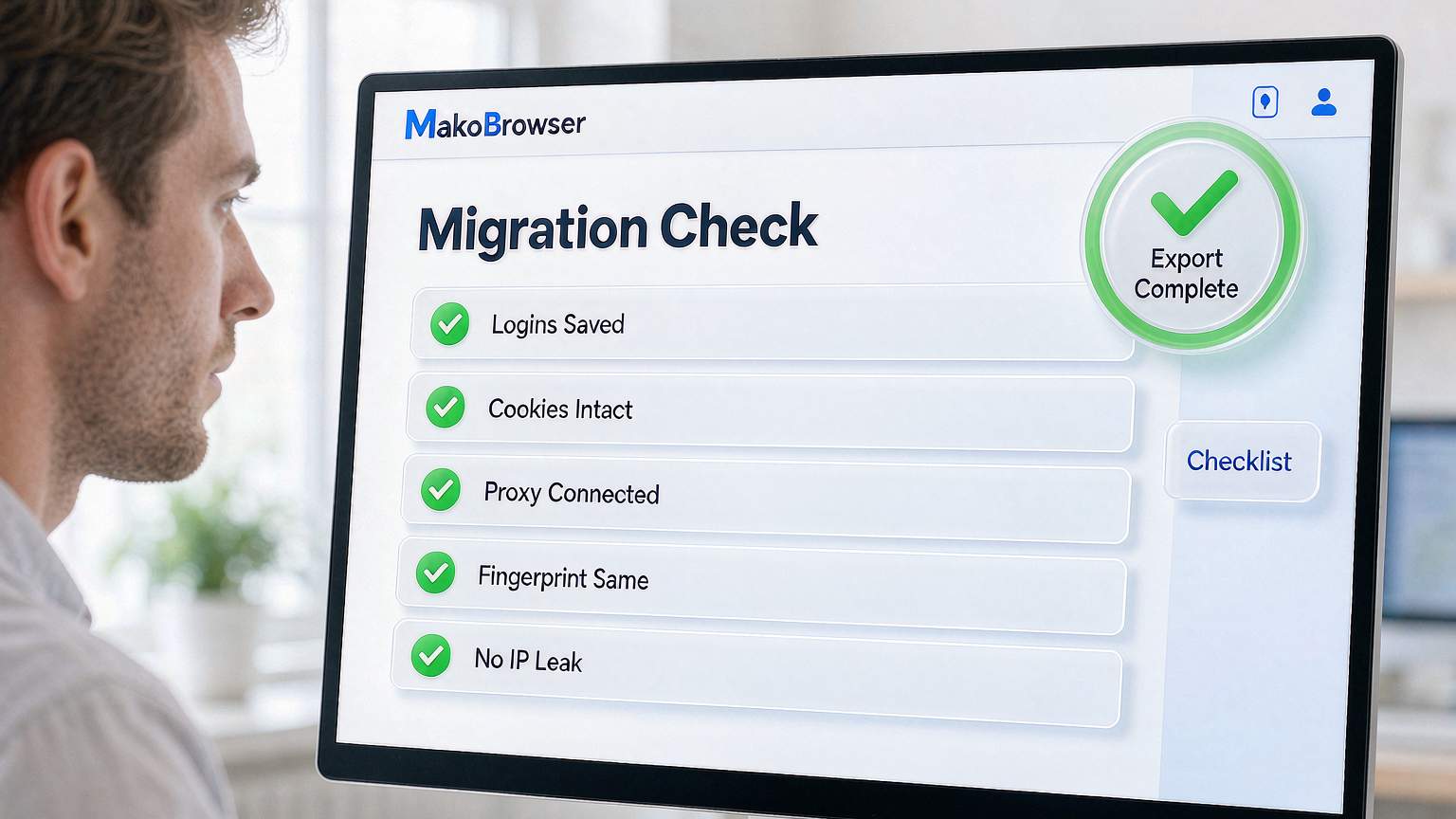
Don't verify by feel in step five; tick each item:
- Login state: every environment opens its platform already logged in, with no re-verification required
- Proxy: the proxy check passes, and the exit location matches before the migration
- Fingerprint: detection-site scores stay in the same band as before, with no drift in Canvas/WebGL/font parameters
- WebRTC: no leak of the machine's real address
- Timezone and language: still aligned with the IP location
These five items follow the same logic as the checks you ran when the environment was first built — the role of fingerprint browsers in multi-account operations lays out the full five steps; migration verification is simply measuring with the same ruler again.
Three Pitfalls That Are Easy to Hit
Pitfall one: exporting only cookies, not the fingerprint configuration. The login state survives, but the "device" the platform sees has changed — which makes aged accounts more dangerous, not less. If you export, export the whole environment.
Pitfall two: jumping into heavy activity right after migration. The new computer itself doesn't trigger risk control — platforms read environment parameters, not hardware. But if some parameters were lost in transit, stacking heavy activity on top creates a double anomaly. Keep usage light and normal for the first two days.
Pitfall three: manually shuttling files in a team setting. Export-and-import is fine for one person; when a team swaps devices frequently or hands environments between people, manual file shuffling will break eventually. That's what a team workspace is for — environments stored centrally with permissions assigned per person, so switching computers is just logging into your own account and "migration" as a step disappears. Our team collaboration article covers exactly this use of team workspaces.
FAQ
After migration, an account demands re-verification — what went wrong? Most likely only the cookies moved and the fingerprint parameters didn't, or you chose "rebuild environment" instead of "full restore" at import. If the fingerprint changed, the platform sees a new device.
Can I migrate between different systems (Windows to Mac)? It depends on whether the fingerprint browser supports the export format across platforms. Most mainstream products do, but some fingerprint parameters (such as platform traits) adapt to the target system — focus your verification on whether the fingerprint score stays in the same band.
Can environment packages be stored on a cloud drive as long-term backups? Yes, and it's recommended — but they must be encrypted. Set the backup rhythm by how much the accounts matter: weekly for core accounts, monthly for the rest.
Will migration drop the login state? Not if you did a full restore. When logins are lost it's almost always one of three causes: the environment was still running at export, "rebuild" was selected at import, or a version mismatch broke data parsing.
Final Word: You're Moving Assets, Not Files
Migrating a regular browser means "syncing preferences"; migrating a fingerprint browser means "transporting account assets" — fingerprint, storage, and proxy, and not one of them can be left behind. We've run this workflow many times, both on our own machine swaps and while helping users migrate, and the biggest takeaway is this: verification matters more than the migration itself. Only when all five checklist items are green is the move truly done.
The export, full restore, and verification features mentioned here all exist in MakoBrowser — the download link is right here. Walking through this guide before you switch machines is the safest route; for specific problems that come up during migration, browse the blog hub.