Fingerprint Browser Team Collaboration: Groups, Roles and Handovers
Start with three scenes anyone who has managed a team will recognize: a new hire joins and the lead sends over a dozen account credentials one by one, along with a sheet mapping which account runs on which proxy; a senior employee leaves and nobody can say whether the login sessions on their environments should be wiped, or whether the proxies are still theirs to use; a client hands their ad accounts to your agency, your specialist logs in once from their own laptop, and the next day the platform is asking the client to verify their identity.
The root cause behind all three is the same: accounts follow people instead of following environments. When one person manages everything, the problem stays invisible; the moment more people and handovers get involved, it all falls apart. I recently watched a demo of a social media operator managing multiple client accounts, and the transition from flying solo to running a team was covered very honestly. Following that line of thinking, this article walks through "fingerprint browser + team collaboration" from the ground up.
Why the solo playbook breaks the moment you have a team
Working alone, everything lives in your head: which account pairs with which proxy, which environment is logged into which client, how long each profile has been aged on which device. That "mental database" can carry five accounts; it cannot carry fifty accounts plus three colleagues.
The moment a team scales up, four problems surface immediately:
- Account assets have no ownership structure. Environments are scattered across personal computers; when a person leaves, the assets vanish with them.
- Permissions have no boundaries. Everyone can touch every account, and when something breaks there is no way to trace who did it.
- Login sessions keep getting reset. Every handover means logging in again, and an account's Cookie history is wiped back to zero over and over.
- Handovers rely on word of mouth. Proxy configs and fingerprint parameters pass from person to person; one wrong parameter and an environment is dead.
Of the four, the third hurts most — an account's real value is its continuously accumulated login sessions and activity history. So the first step of teaming up is not hiring; it is getting the environments themselves under control: one account per environment, fingerprint, Cookies and proxy kept independent. That foundation is covered in depth in our article on fingerprint browsers for multi-account operations; teaming up simply adds a layer of "people management" on top of it.
The four collaboration capabilities a fingerprint browser gives a team
For team scenarios, these are the four layers where a fingerprint browser genuinely earns its keep.
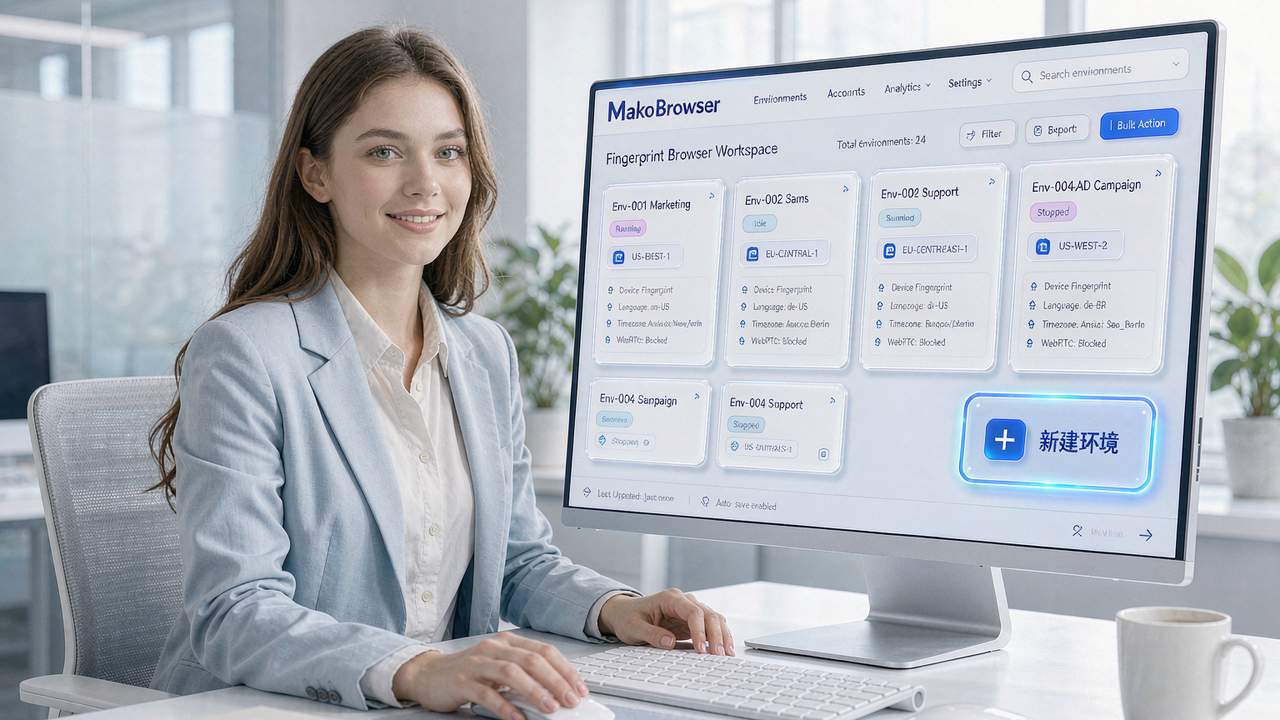
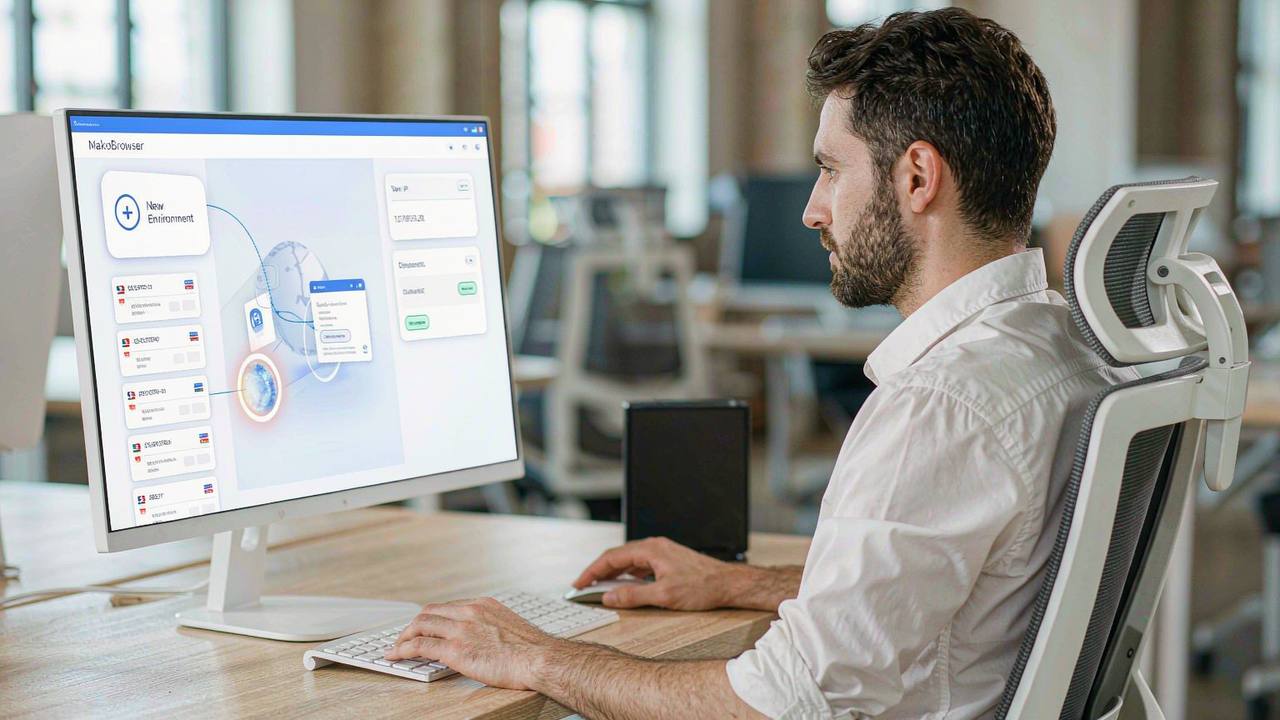
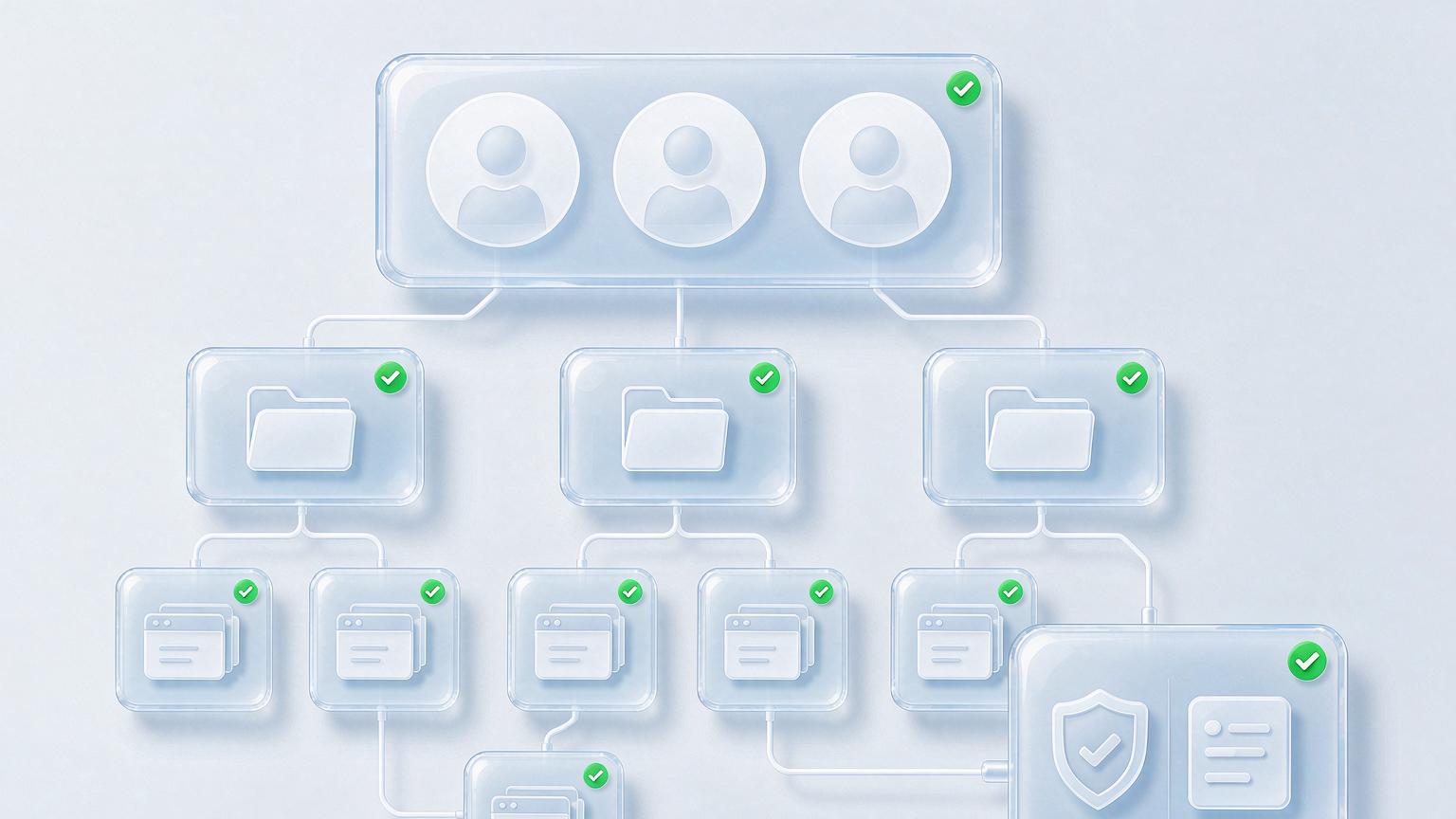
Layer one: centralized environment hosting. All environments live in one team workspace instead of being scattered across personal machines. Create groups by client or project — all of Client A's environments in one group, Client B's in another — so ownership is obvious at a glance, and when personnel change, the assets stay with the team.
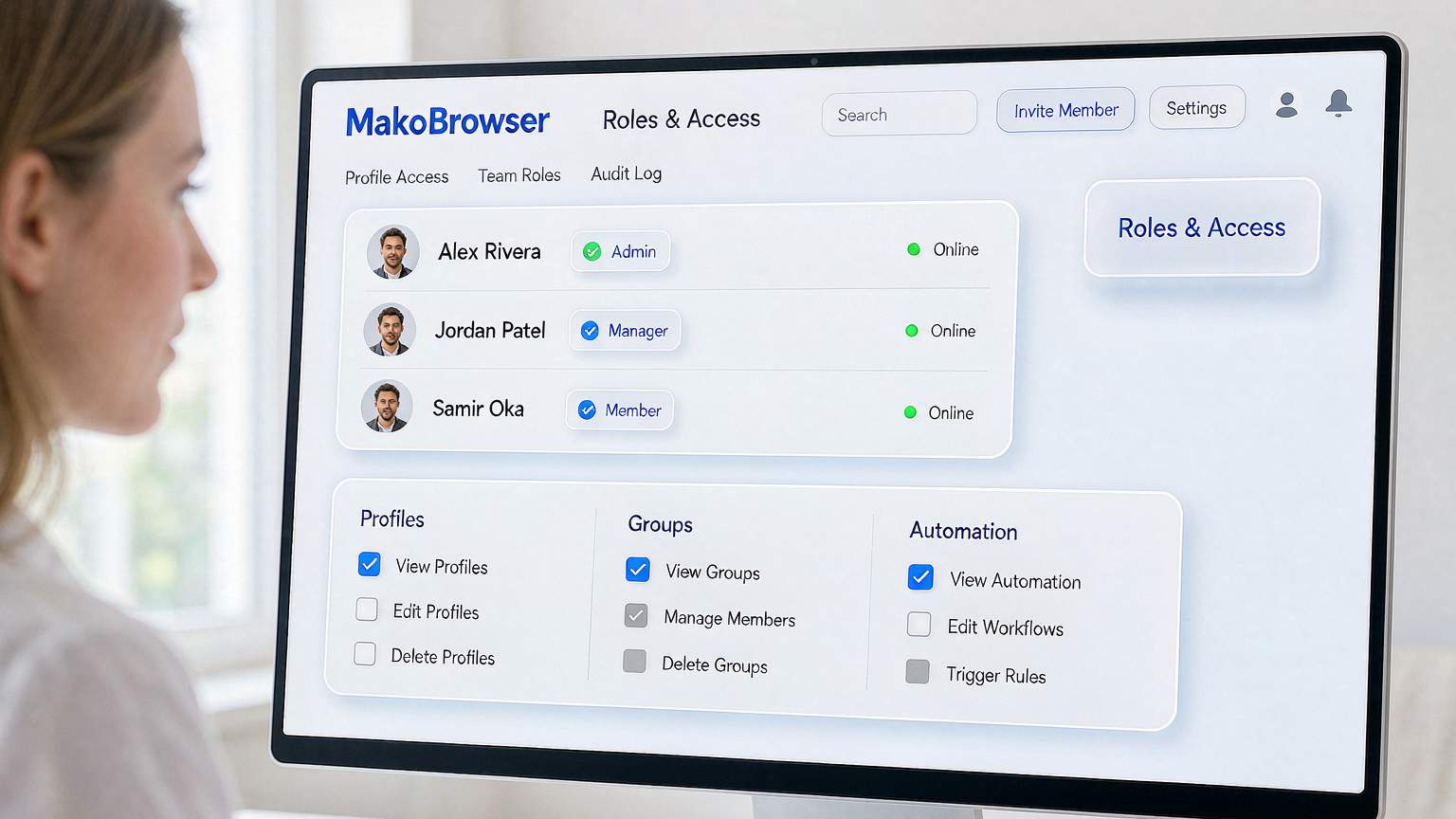
Layer two: roles and permissions. Leads create environments and set policy; team leads can assign tasks and review results; operators can only open the environments assigned to them and run daily work. Get permissions granular down to "can view, can edit, can delete" and the classic disaster of a new hire deleting a production environment is cut off at the root.
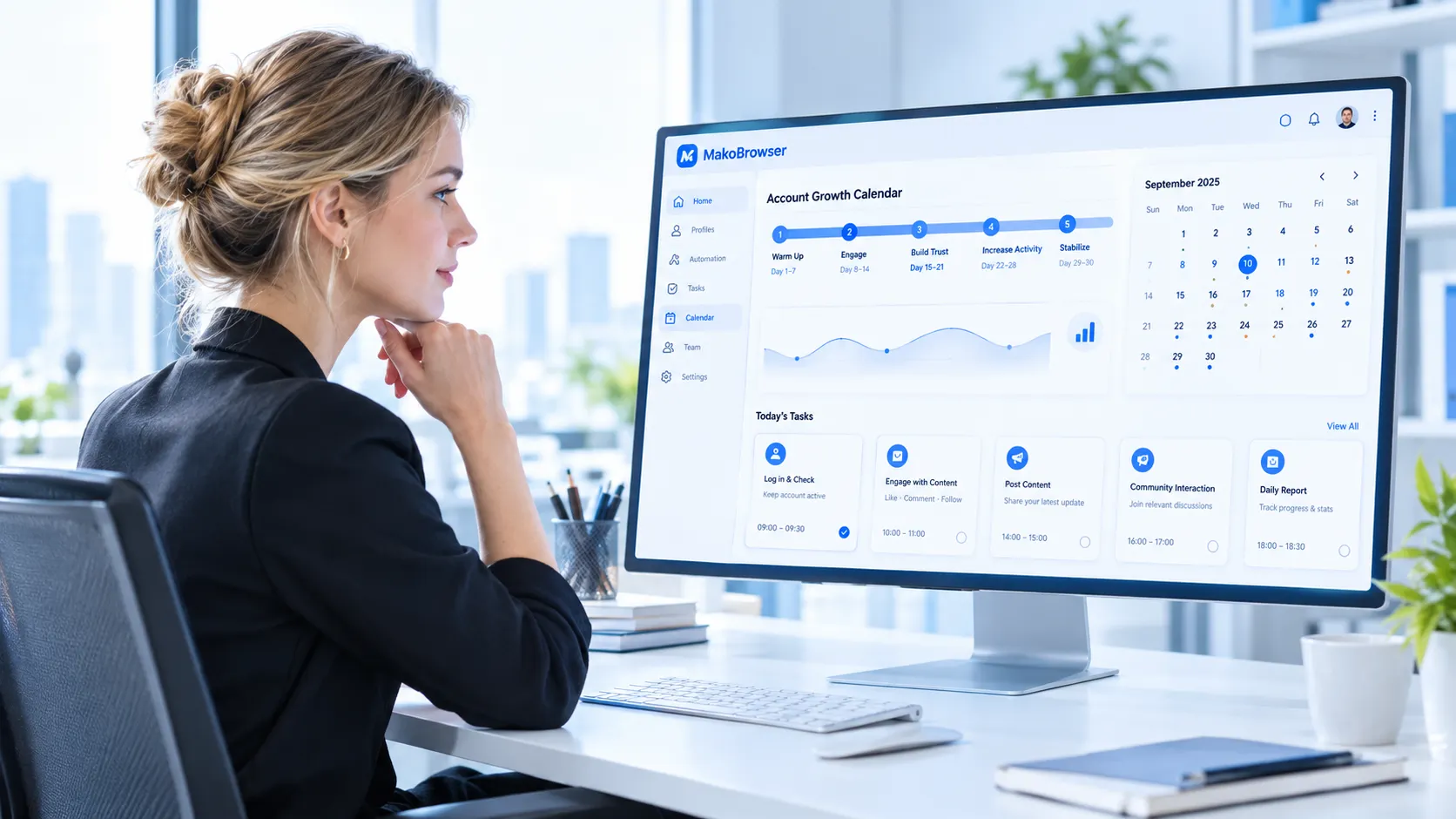
Layer three: always-on shared login sessions. This is the most tangible gift a fingerprint browser gives a team — login sessions belong to the environment, not the person. Colleague A runs Client B's daily engagement today; tomorrow Colleague B takes over, opens the same environment, the session is still there, no re-login, and the account's Cookie history never breaks.
Layer four: an operation trail. Who opened which environment, when, and what they did — the logs have all of it. When something goes wrong you can trace it back, and that is the biggest difference between team collaboration and flying solo.
We have run all four layers for real in MakoBrowser: a team workspace grouped by client, three-tier role permissions, sessions that follow the environment, and operation logs as the safety net — moving from solo to team does not mean rebuilding your old environments; you migrate them as they are.
Putting team collaboration into practice: five steps to straighten out permissions
The capability is there; what actually makes a team run smoothly is an execution order. Five steps:
Step one, create groups by client or project first. Groups are the smallest unit of permissions — err on the side of more, finer groups rather than one grab-bag group holding every environment. Name groups after the client or project directly, never "test 1" or "temp 2," names nobody will recognize in two weeks.
Step two, define roles before inviting members. Work out how many roles the team needs and what each one can touch, then bring people in. Do it the other way around — invite first, figure out permissions later — and you will end up giving everyone full access.
Step three, bind environments to people, keep assets in the group. Each environment has one clearly named day-to-day owner, but the environment itself lives in the team group — people can change; the environment and its login sessions do not.
Step four, turn handovers into a process. Taking over a client account means a new environment + a new proxy + an independent fingerprint aged from scratch — not the departing employee handing over passwords for a fresh login. The full handover checklist for managing client ad accounts is broken down by scenario in our Google Ads account management guide; following it will keep you clear of most risk-control traps during a takeover.
Step five, sweep the operation logs once a week. Not to police people — to catch anomalies: logins outside working hours, open records from unfamiliar devices, all worth a second look.
Two bonus points for remote teams
Collaboration also comes with a trend you cannot dodge: team members spread across different cities, even different countries.
Bonus one: remote logins stop contradicting themselves. The easiest trap for a remote team is members logging into shared accounts from their home networks — the same account logging in from city A today and city B tomorrow looks like a stolen account from the platform's point of view. A fingerprint browser solves this by binding the proxy to the environment: no matter which member opens it from which city, the platform always sees the same IP and the same fingerprint. For how to verify parameter consistency on remote logins, the acceptance checklist in our TikTok environment setup guide applies just as well to team scenarios.
Bonus two: mobile collaboration without shipping physical phones. Part of the daily workload happens on mobile — social engagement, publishing content. Cloud phone form factors let a team member operate "a phone bound to an independent environment" straight from their computer, with no physical devices couriered back and forth and nobody logging into a client's account from their personal phone.
FAQ
Is the team feature worth it for a two or three person team? If a handover is ever possible, yes. Even with total trust across the team, keeping environments in a shared workspace prevents the "one person is on leave and every account freezes" problem.
What happens to environments when a member leaves? Just revoke their access. The environments and login sessions sit in the team workspace; the next person opens one and it works. The only extra step is a pass through that member's operation logs to confirm nothing looks off.
Can members see each other's environments? Depends on the permission setup. Set visibility per group — everyone sees only the groups they own, which is the granularity most teams find comfortable.
What role should contractors get? Execution-level permissions only, bound to specific groups, with a full queryable operation trail. When the contract ends, remove the member outright and leave no residual access.
Closing thought: let accounts follow environments, not people
The dividing line between solo work and a team is not headcount — it is whether account assets have a storage and circulation mechanism independent of any individual. The answer a fingerprint browser offers is plain: environments into the team workspace, groups aligned to the business, permissions aligned to roles, login sessions following environments, logs covering everything.
For anyone moving from solo to team: migrate your existing environments into the team workspace grouped by client first, define roles second, and only then invite people. Get the order wrong and your permissions will live in a permanent state of patches on patches.
Full transparency: while writing this, our own team workspace had just finished migrating in exactly this order — groups first, then roles, then people, with zero rework in between. If you are ready to make this move, the MakoBrowser download is here; if you get stuck on permission design during migration, the blog center has the earlier articles for reference.